How to use Order Approval for your Customers
Getting Started with Order Approval
To access the Order Approval solution, please log in with an account that has Administrator rights. By default only the original user account has admin rights. After you have logged go to MyAccount's Dashboard and change the setting "Order Approval Process Option" to "Active" by default this is set to off. Now you can setup users and their Permissions, Spend Limit and Workflow Assignments.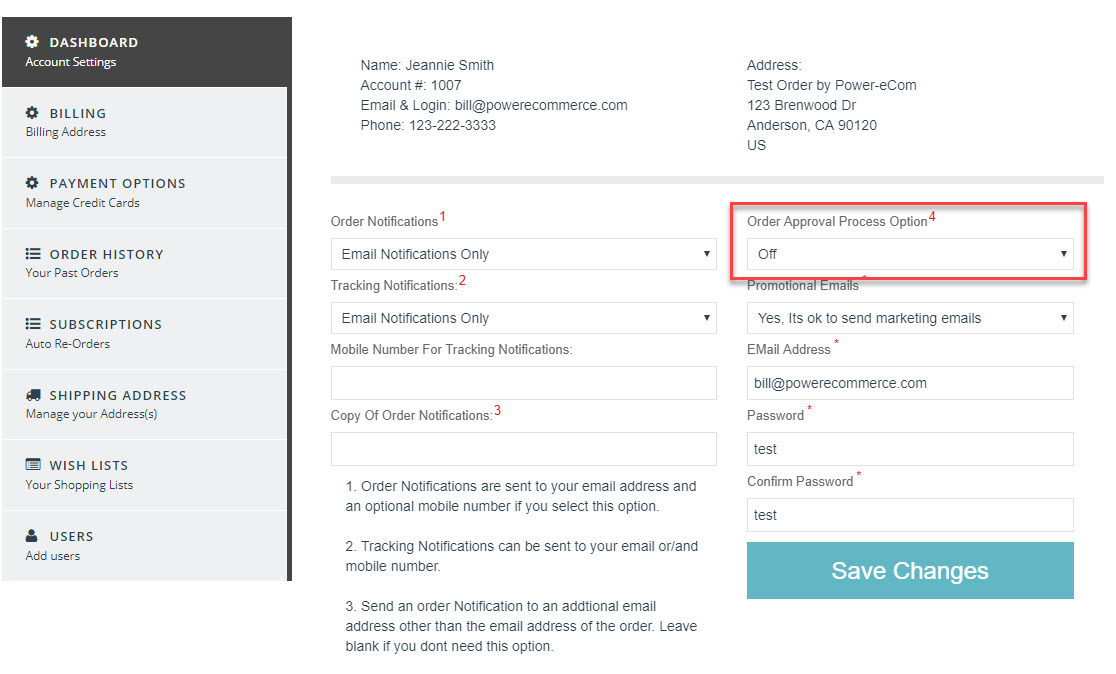
Editing a User's Permissions, Spend Limit and Workflow Assignments
In the Users Tab click on a user to edit their settings or add a new user: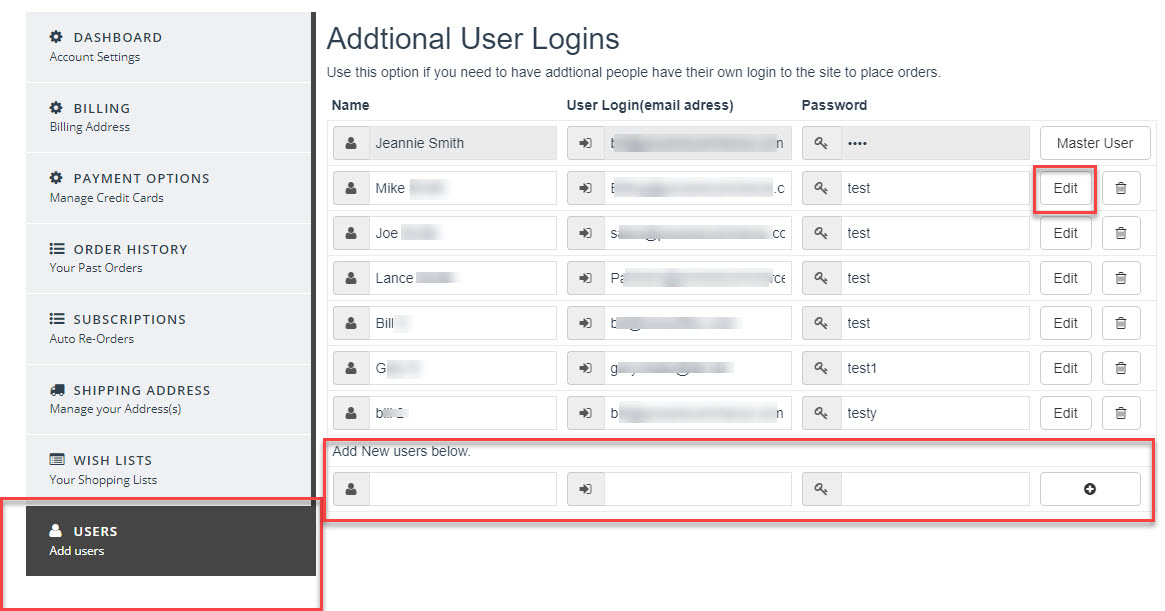
Viewing the User card/details you will see a number of settings that will help manage the users "Approval Process".
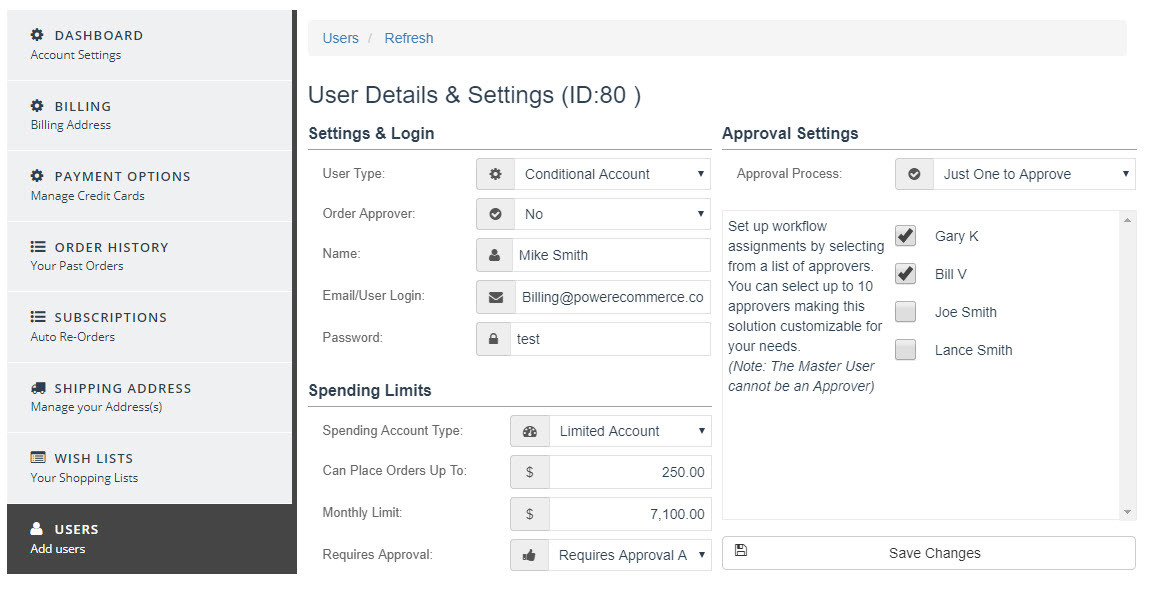
User Type: The user type will help determine the role of that user.
- Standard : This user type is the default user type. No limits can be placed on this user they can order with no approvals needed in any amount. They are limited to only seeing and editing there their own sub-user password and details.
- Administrator : This user type can manage all user types including other admins. No limits can be placed on this user.
- Conditional Account : Can only edit there info like a standard user but order limits and order approvals can be added for this user type.
Order Approver : Do you want this user to "Approve" other users orders if so select "Approver" then when an order is placed where they are an Approver for that user they will get an email to approve or deny the order.
Name : The name of the user (i.e. Mike Smith, New York Office, Jill Smith and so on).
Email/User Login : The email address of the user, can NOT have more than one user with the same email address.
Password : passed word for this user must be 6 characters long or more.
Spending Limits
Spending limits can only be placed on "Conditional Accounts".
Can Place Orders up to: Here we can limit the maximum dollar value a single order can be placed for and works with the "Requires Approval" setting below.
Monthly Limit : Set the maximum dollar value for all orders for each month and works with the "Requires Approval" setting below.
Requires Approval : There are four options for Requires Approval most work with the spending limits above.
- Requires Approval All Orders - Every order placed an order approval is required regardless of limits.
- Requires Approval Only if Exceeds Limits - Order approval is only required if order or monthly total exceed limits.
- Requires Approval cannot Exceed Limits - Order Approval is required for all orders but they can NOT exceed limits. Will not be able to place an order if that order or monthly total exceeds limits.
- No Approval cannot Exceed Limits - User cannot place an order that causes them to exceed spending limits but they do NOT require any approvals.
Approval Settings
This is where you setup the process if a user requires approval for there orders.
Approval Process : There are three option listed below on how the approval process will flow.
- All Must Approve : Each of the "Approvers" selected(check mark next to there name) must approve the order for it to be approved if any one of them deny the order it will be canceled. All the "Approvers" are sent the approval request at the same time.
- Just One to Approve : It just takes one of the "Approvers" selected to approve an order if any one of them deny the order it will be canceled unless the order has been already approved by another "Approver". All the "Approvers" are sent the approval request at the same time.
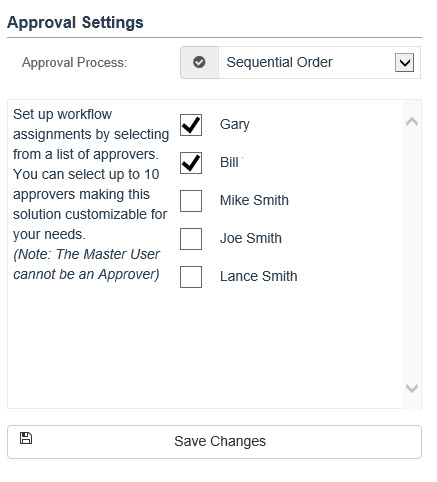
- Sequential Order : All the "Approvers" must approve the order. The order approval request is sent to one approver at a time in the order they are selected (top down in the list of approvers). Once the 1st approver approves the order then the next approver will be sent the approval request and so on. If any one of the approvers denies the order the chain will stop and no other approvers will be sent an approval request.
Once an order is Approved or Denied the user that placed the order will be notified via email that the order was Approved or Denied.
Set up workflow assignments for Approvers
Set up workflow assignments by selecting from a list of approvers. You can select up to 10 approvers making this solution customizable for your needs.
(Note: The Master User cannot be an Approver)
|
To setup your workflow assignments simply select the "Approvers" that you wish to approve this users orders. If you are using "Sequential Order" for the order approval process. Then select the "Approvers" in the order you want them to receive the approval request. The first selected will be the 1st to get the approval request the 2nd will get an order approval request after the 1st has approved the order and so on.
|
|