Registration Page Options
"Create a New Account" also known as the "Registration Page"
( The location of your Registration Page www.YourDomainName.com/myaccount/newaccount.asp )
Standard eCommerce Store (not forced login):
If you have a standard eCommerce store setup (where you don't force users to login to view your site) the Registration Page is not required to be used by a new customer to buy from your store. When they checkout as a guest an account is automatically created for them after they checkout.
However there are times that having customer Pre-Registrar is useful to both the customer and the store.
- Customers Joining a "Customer Group" for there school or business.
- A Salesman may want to give potential new customers a unique link that links that sales person to that customer automatically.
- There are many other reasons i am sure you can think of as well.
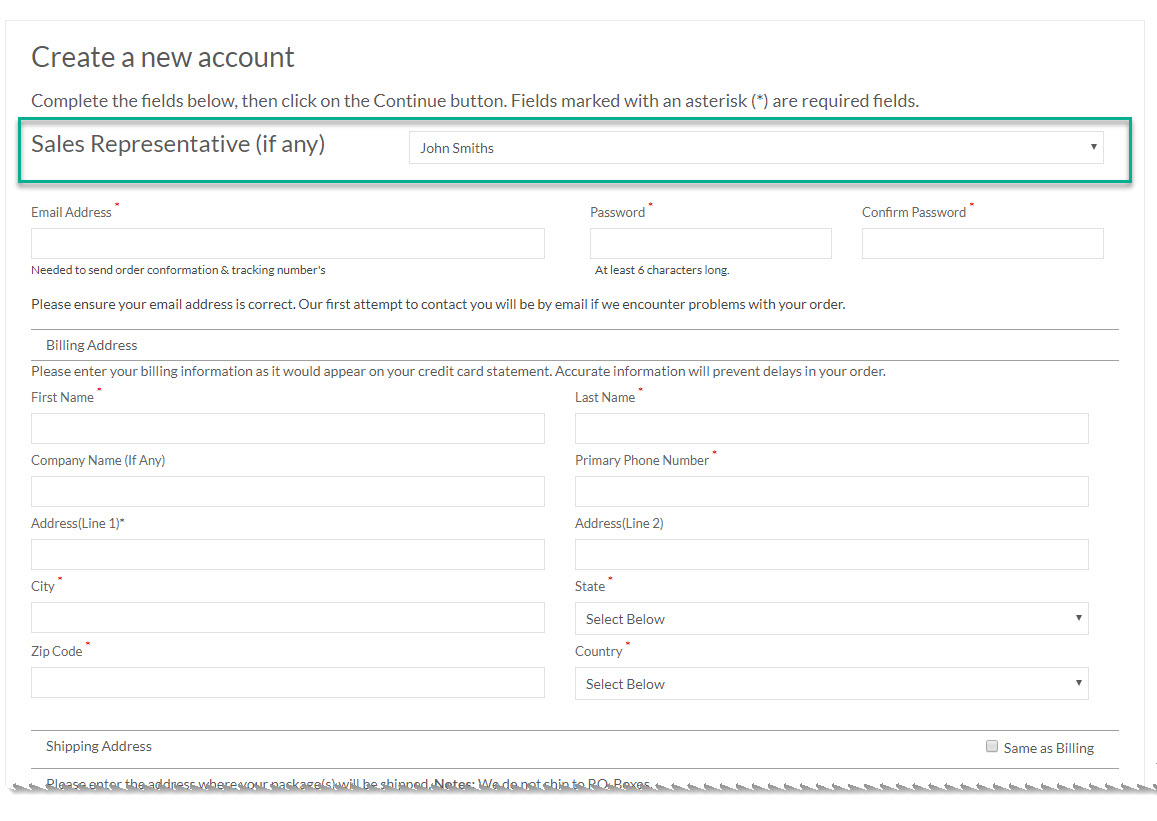
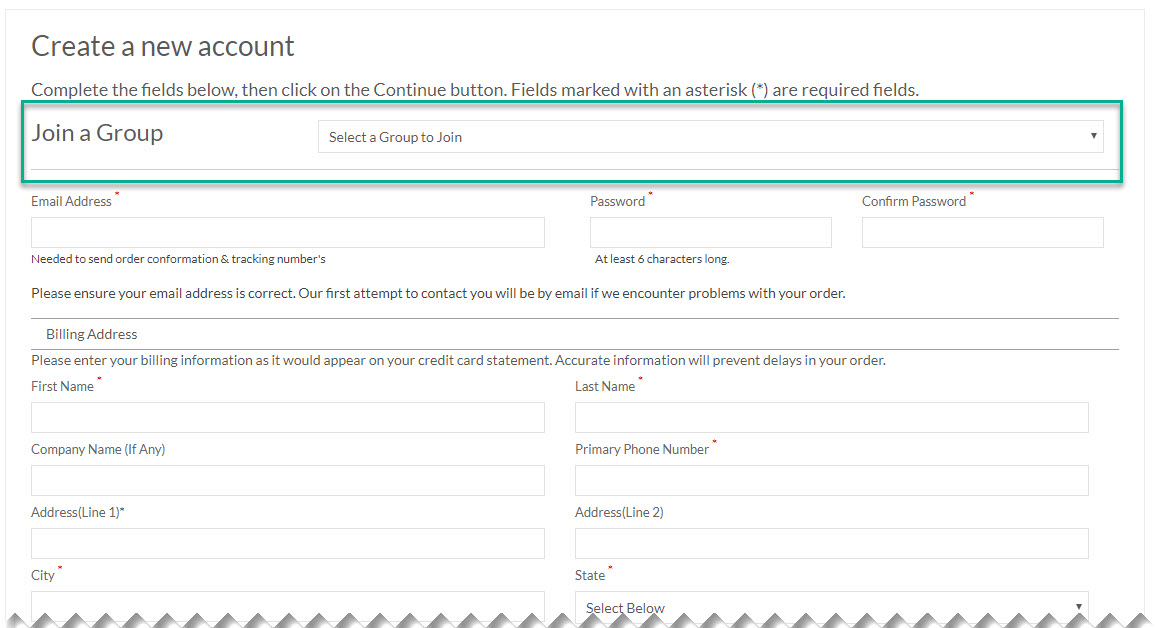
By default the "Create a New Account" page does not contain "Sales Team" or "Customer Group" drop down options because most sites will not need the. How ever there are some stores that will want to show there sales team name or customer groups so the new customer can select one if they wish.
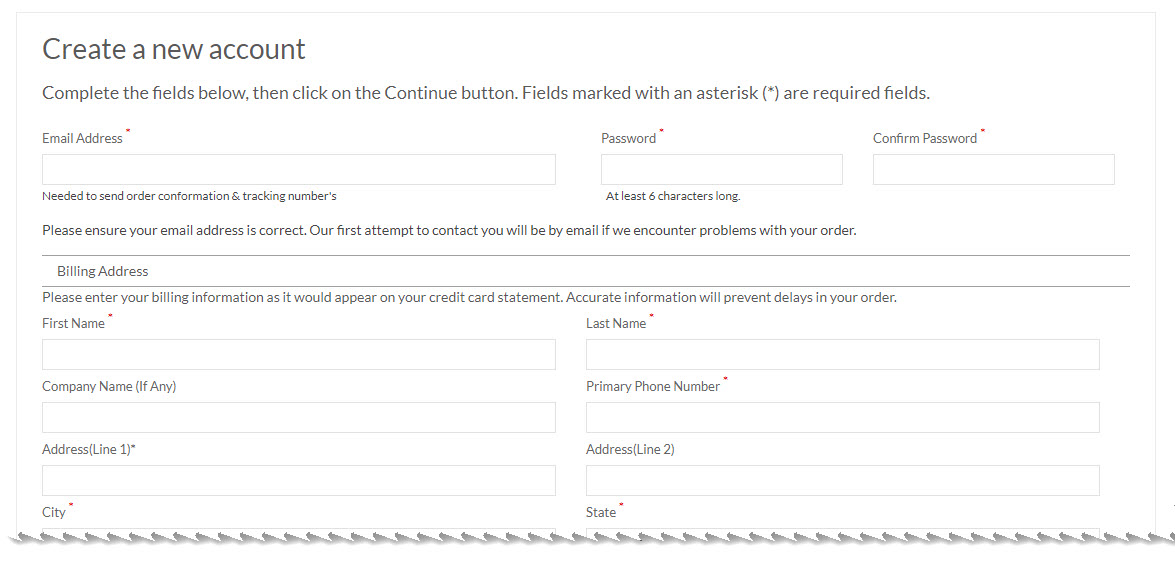
One or the other "Sales Team" or "Customer Group" drop down menu can be displayed but not both. If both are turned on the default will be to show only the "Customer Group" drop down menu (this cannot be changed).
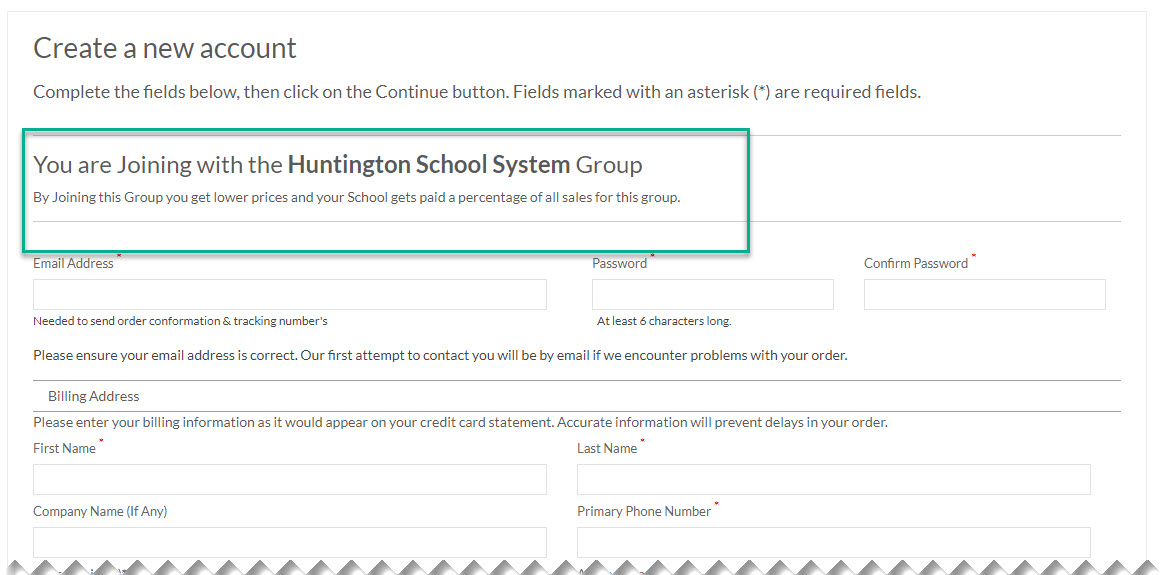
Direct Link from a Sales Team link or a Customer Group link will just show that Sales Team member or Customer Group with no drop down menu item to change the Sales Team member or Customer Group.
Sample of Sales Team drop down menu turned on:
Sample of "Customer Groups" drop down menu turned on:
Sample of a Direct Link to a "Customer Group"
Forced Login eCommerce Store:
If you have a forced login eCommerce store (where users MUST login to view your site) the Registration Page is required for new customers to signup. New customers must be approved from the stores admin before they can login. Customer Groups can have this set to Auto Approve if a customer signs up under a group with that turned on (see getting started with Customer Groups in the help desk).
The new account signup page settings are the same for both standard sites and forced logo sites.
Registration Page Options:
To turn on Customer Group drop down menu on the Registration Page follow these steps:
- From your Admin menu go to Customers -> Customer Groups
- Select the drop down menu show in the image below from "Do Not Show Customer Groups..." to "Show Customer Groups on New Account Registration..."
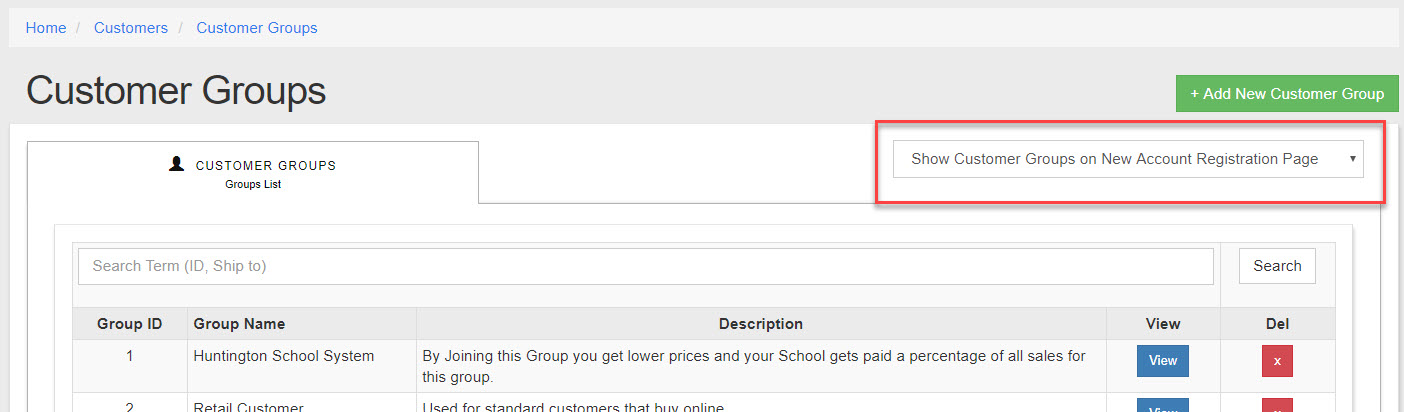
- To turn the option off just reverse the selection.
- No need to save changes the page will automatically save and reload when you change the option.
To turn on Sales Team drop down menu on the Registration Page follow these steps:
- From your Admin menu go to Sales-> Sales Team
- Select the drop down menu show in the image below from "Do Not Show Sales Teams...." to "Show Sales Teams on New Account Registration..."
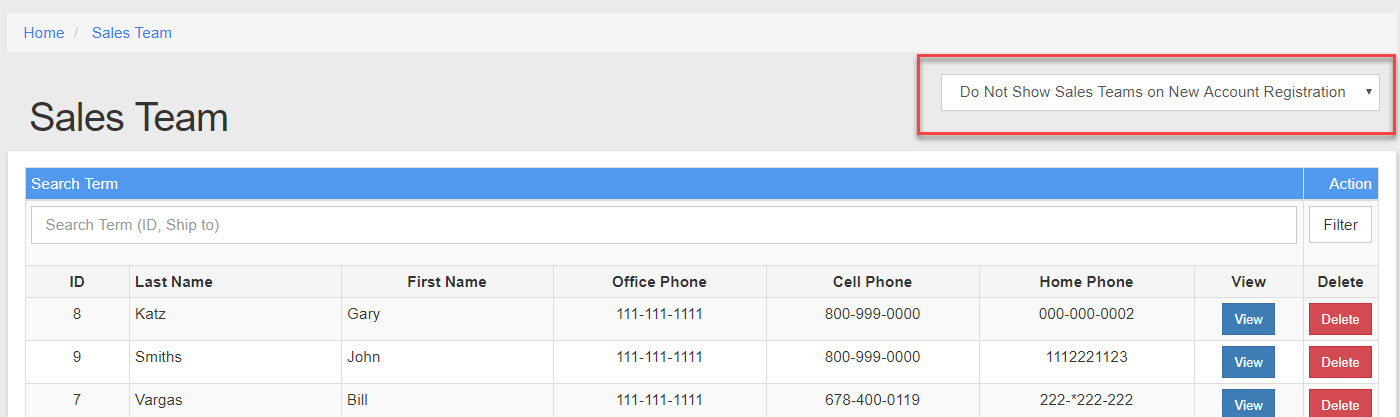
- To turn the option off just reverse the selection.
- No need to save changes the page will automatically save and reload when you change the option