What do I do when I Get an Order?
You have your first Order now what ?
Once an order has been placed by a customer on your website, you have many options in regards to processing the order. This will guide you though the options for managing the order(s).
This article contains the multiple topics. Click on a link on the left to be taken to the respective area.
Viewing the Order(s)
- Go to Sales -> Orders
- Select the order from the list order orders by clicking "View".
(there may only be one order if this is your first order).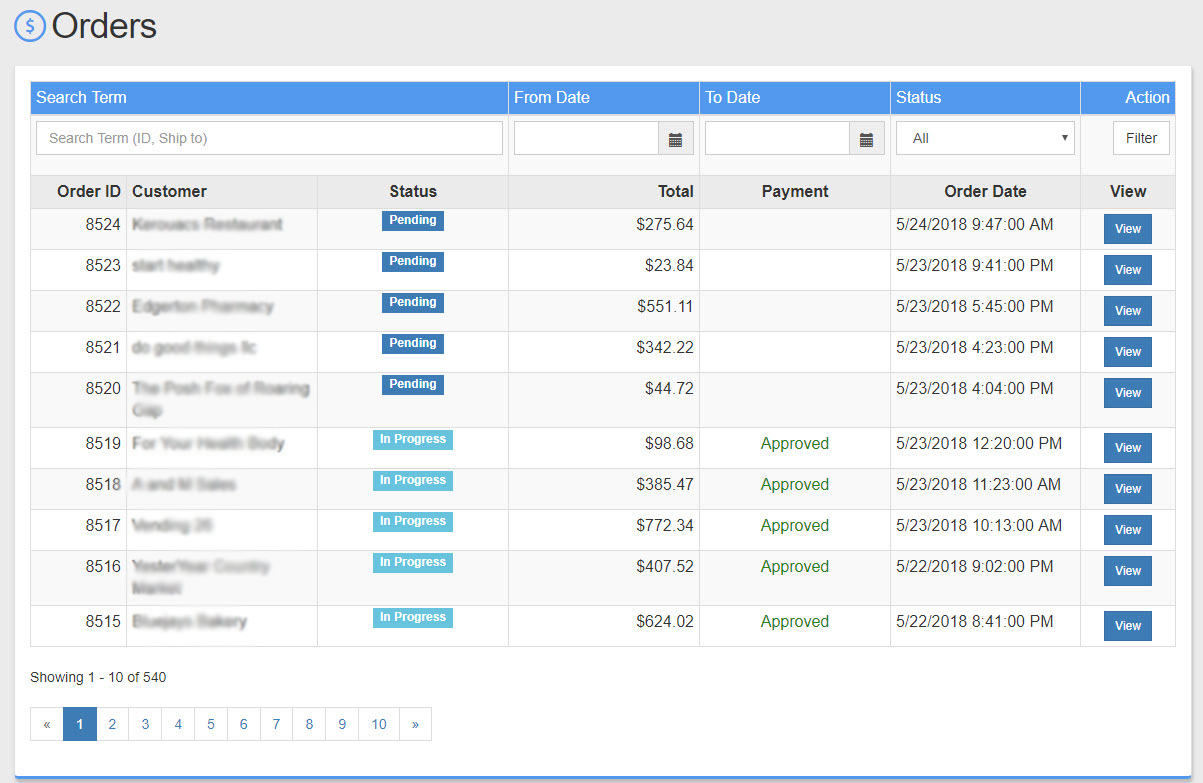
- Once you are viewing the order you want to review the orders authenticity(making sure its not an attempt at fraud).
- Now if all looks good lets "Charge" the customers Credit Card by Clicking the "Charge $ XX.XX" button near the top right of the order.
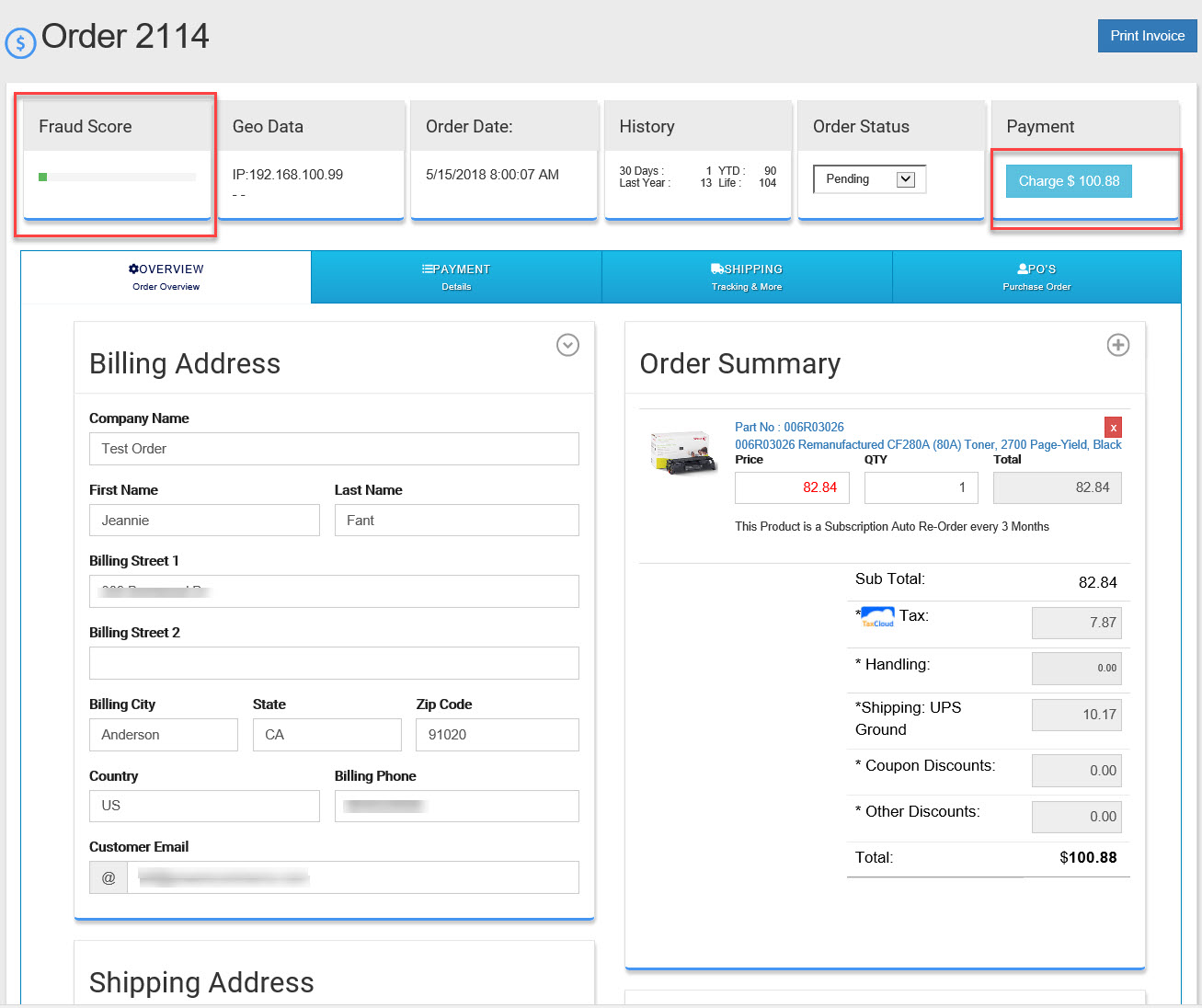
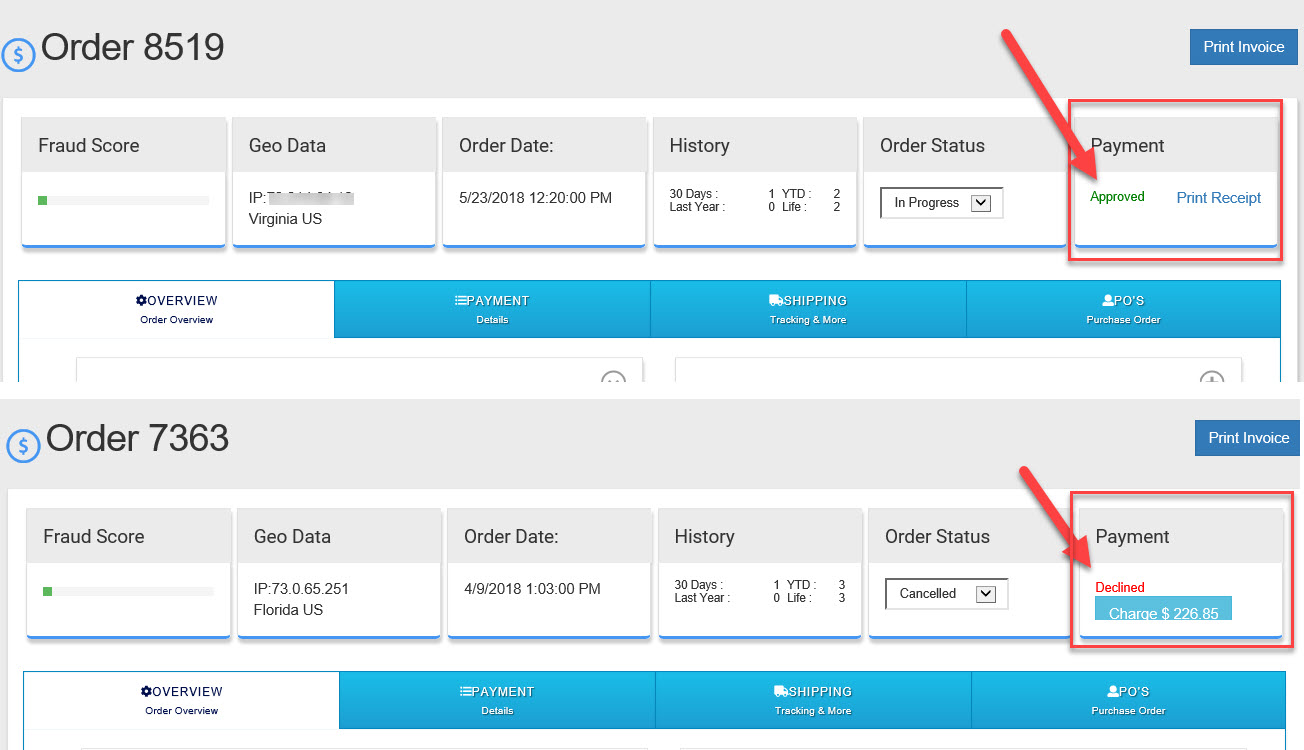
- Once you have charged the customers Credit Card you will get one of three types responses.
a. Approved
b. Declined
c. nothing - this indicates the payment gateway is not setup properly see "How Do I Set Up an Online Payment Gateway?" - If the order is "Declined" you will need to contact the customer to update their payment method.
- If the order is "Approved" then you need to ship the ordered products.
- If you are drop shipping the items ordered from your vendor(s) then follow these steps to do so.
- Now click on the PO's Tab."1"

- For each item ordered select the vendor you wish to have drop ship that item for you"2". Each item/product can have one or more vendors to select from. The default vendor will be per-selected for you (to change the default vendor see vendors in that given product).
- Once you have the vendor(s) selected (you can send an order to multiple vendors at the same time not all orders will ship from one vendor).
- Click on "Create PO(s) & Send""3" or "Create PO(s)" Create PO(s) & Send" will send the PO to the vendor automatically via email or EDI(electronically) depending on there integration. if you click on "Create PO(s)" you will need to manually send to PO to your vendor.
- You will then see the PO or PO's displayed under the create PO buttons"4"
- Now that the PO(s) have been sent you should change the status of the order to either "In Process" or "Complete" or wait until you have the tracking numbers to Complete the order.
- You are done until you get the tracking numbers from your vendors.
- To Enter the tracking numbers click on the orders tab "Shipping" and enter the numbers there.