How to use Google Shopping Feed
You can easily generate a feed of your products for use on Google Shopping by using Power-eCommerce's Google Product Feed Generator. This article will show you how to use the service and generate the feed for your Google Merchant account.
Requirements
Before proceeding with the following steps, please be aware that you will need the following:
- A Google Merchant Account
Where you will set up your store presence for various Google Merchant services, including Google Shopping product feeds. - The Google Product Feeds Add On enabled (Optional if you need this automated)
This is the service that will allow you to automate your product feed for Google. It is available as an add-on.-module. Please see "Add On Modules" in the help desk.
Special Note regarding Clothing and Apparel:
As per Google requirements, clothing and apparel products MUST have variants/options created for the following attributes:
- color
- size
- material
- pattern
Even if the clothing item has only one variation/option available to it or to a particular attribute - for example: a solid pattern, cotton t-shirt that comes in only one size and color - the option sets will still need to be created on your store in order to be able to use the feed automation. Furthermore, the singular option cannot be hidden from view on the product listing and must be visible (although you may set it as "pre-selected" to avoid shopper confusion on your store front.
These limitations are due to requirements put forth by Google in the way apparel products are represented in the feed.
Enabling Google Feeds
To enable Google Feeds in your store, please follow these steps:
- Log into your Power-eCommerce Admin
- Go to Marketing ->Shopping Engines
- Look for "Google Product Feeds"
- Set each of the following Settings: (Highlighted are recommended)
- Strip HTML from Product Descriptions [Yes/No] : Should almost always be set to "Yes" It pulls any HTML like font colors out of the product Description.
- Export out of stock products [Yes/No] : If you do not want product that show out of stock to export then this should be set to "No"
- Export Zero (0.00) Priced Products [Yes/No] : Google will reject zero($0.00) priced items.
- Export Shipping for Products [Yes/No] : Only works if you are only using Shipping Tables to calculate shipping cost.
- Export All Product Classifications* [Yes/No] : If "No" then select Classifications to export in "Products -> Product Classifications". Only use this if you have spent the time to place products in a Product Classification. This is used to limit products sent to Google Shopping and to group products together for other site functions. By default this is set to "Yes"
- Export Product with No Classifications* [Yes/No] : This is used in conjection with the above to limit products sent to Google Shopping. By default this is set to "Yes"
- Condition Settings : Select the Product Conditions you want to export at least one must be selected. Some Shopping Feed sites do not allow all types of Product Conditions.
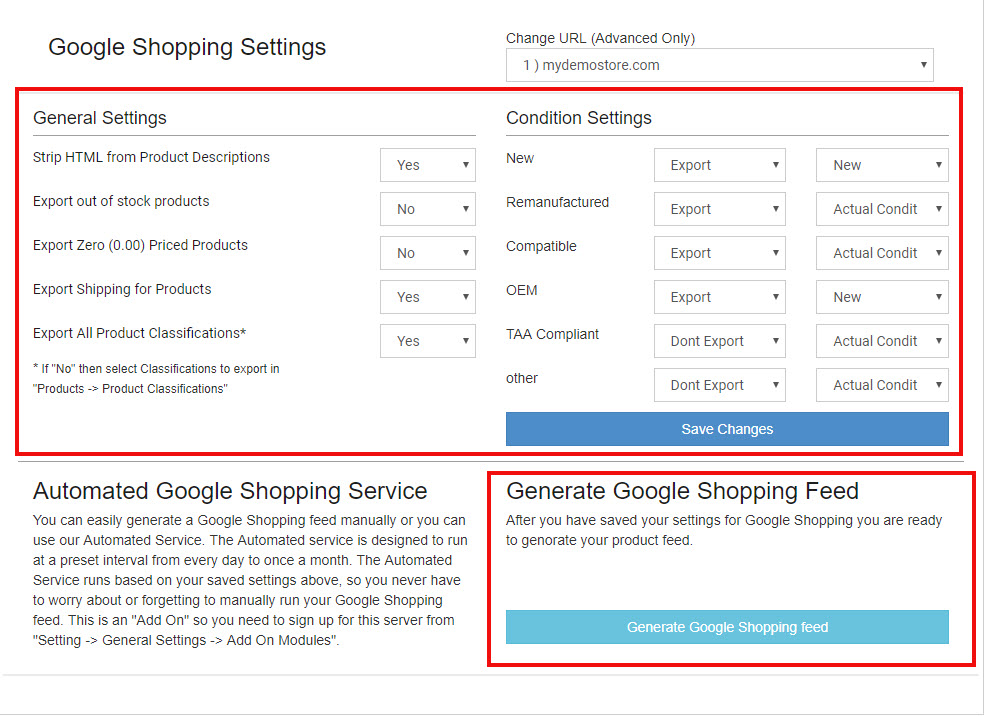
- Click "Save"
Generating and Using your Google Shopping file
After your settings are set, you will need to generate the Google Shopping feed and - using the supplied URL - submit it to your Google Merchant account.
- Click on the "Generate Google Shopping feed" button.
- Now Copy the URL with your Google Shopping Feed once the feed has been generated.
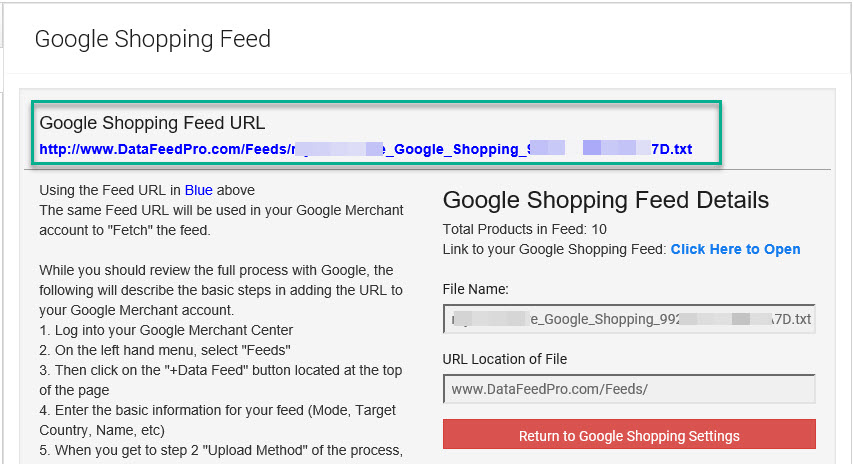
Using the Google Shopping Feed URL
The same Feed URL will be used in your Google Merchant account to "Fetch" the feed.
While you should review the full process with Google, the following will describe the basic steps in adding the URL to your Google Merchant account.
- Log into your Google Merchant Center
- On the left hand menu, select "Feeds"
- Then click on the "+Data Feed" button located at the top of the page
- Enter the basic information for your feed (Mode, Target Country, Name, etc)
- When you get to step 2 "Upload Method" of the process, select "Automatic Download (Scheduled fetch) and click "Continue"
You will see a page similar to the following:

- In the Feed URL section, paste your URL Google Shopping Feed that was generated above.
- Click on Next and you will be presented with a table listing your feed.
- Click on the feed's name, followed by "Fetch now" to process the feed.
Your google feed is now automated!