How do I set up my Payment Methods?
Setting up your payment methods is essential to your online store. Power-eCommerce supports many types of payment methods which can be divided into two types of categories: Online and Offline Payments.
- Online payments
allow you to accept real-time transactions via credit card transactions. For Online Payment Methods, you will need a merchant account, such as PayPal, PayTrace, or Authorize.net which will be used to process the actual payment transactions. - Offline payments
allow you to accept manually submitted payment such as checks or Net Term account. You do not need a merchant account to use offline payments since there is no real-time credit card processing to be done.
Offline Payments
Setting up offline payments will allow you to accept checks, money orders, purchase orders, store pickups, etc. All offline payments will have to be manually processed once the order comes through.
Offering Net Terms
You can choose to offer your customers Net Terms. Each individual customer has to be approved to have Net Terms in addition to this payment option turned on.
First Turn on or Active "Net Terms":
- Go to Settings -> Payment Setup
- Click the "Net Terms".
- Now Select the "Active" Option.
- It will save your selection automatically no see to save.
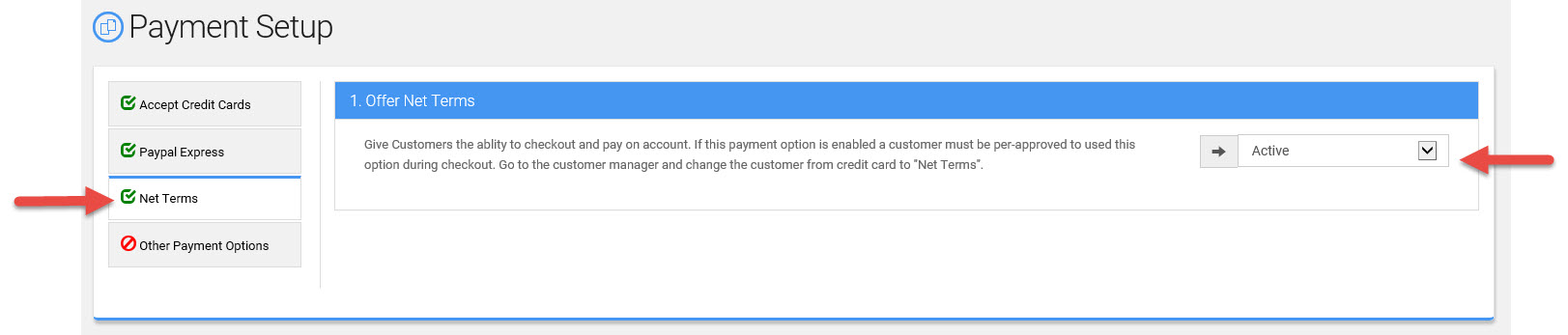
Customer Setup for Net Terms
-
Go to Customers -> Customer List
- Select the Customer you would like to offer "Net Terms" to.
- Look for the "Account Details" area and change "Payment Type" to "Net Terms".
- Click on "Save Changes"
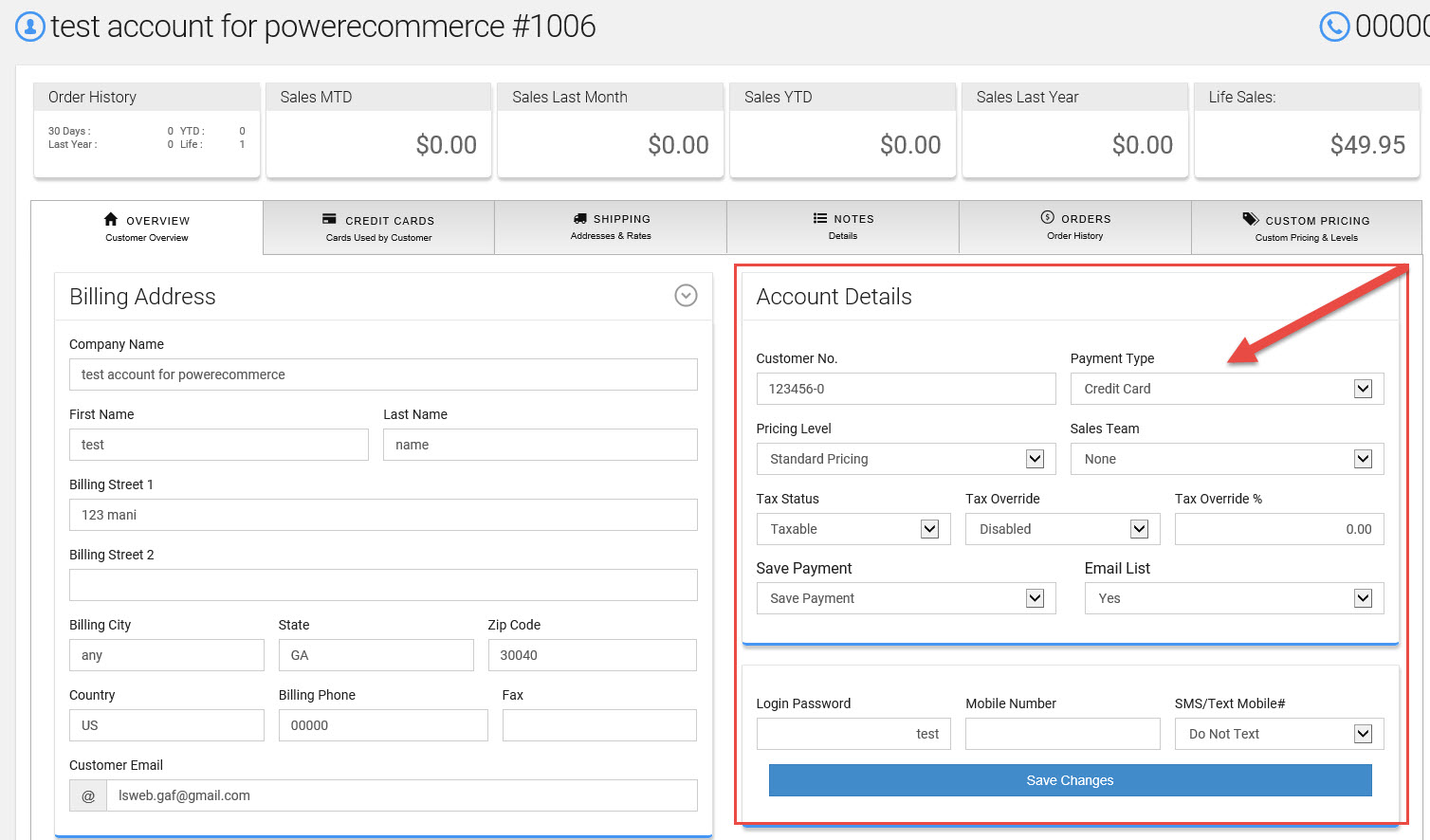
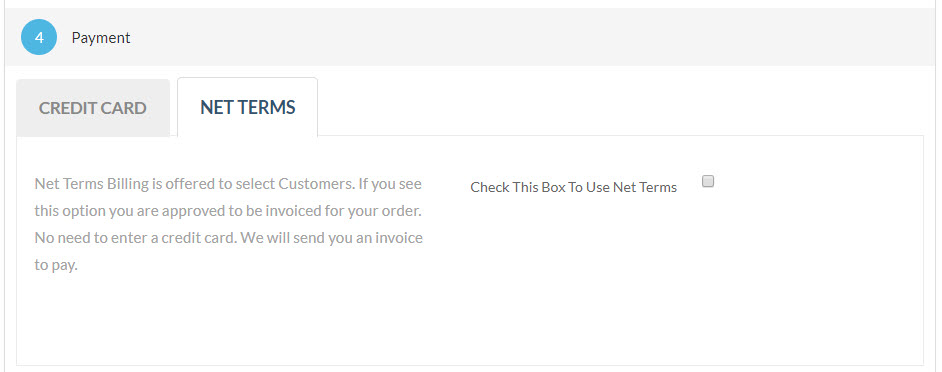
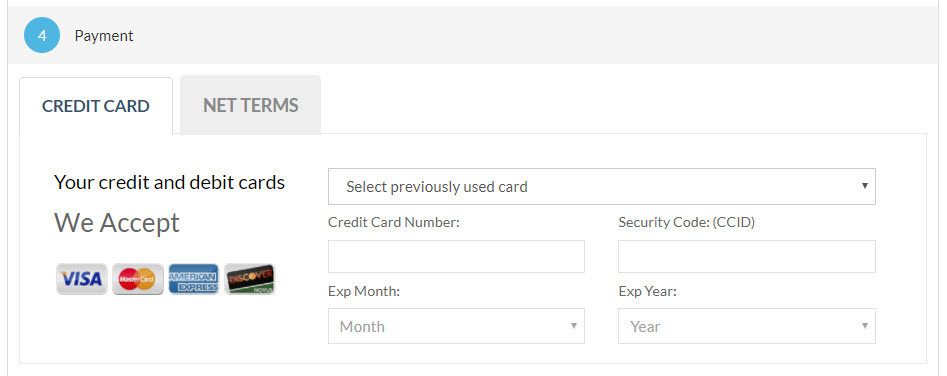
Once both these settings have been made this customer will see both options to pay with a Credit Card or Net Terms.
Net Terms Option:
Pay by Credit Card Option:
Online Payment Methods
Setting up online payment methods will allow you to accept credit cards. The advantage to this is that you do not have the risk or a Net Terms customer and you get your money within a few days. However, you do need to have an account with a payment gateway. Power-eCommerce supports many payment gateways with varying settings. However, for the most part, the general settings are the same for each. This section will go through a step-by-step process on how to setup the majority of online payment methods.
Payment Gateways
You must setup your payment gateway on your own if you do not already have an account. If you currently have a merchant account, but not a payment gateway, contact them and let them know you would like to be setup with one. If you do not have a merchant account, you can click here to help you get setup with one.
The Payment gateways Power-eCommerce supports can be seen at the following URL:
http://www.Power-eCommerce .com/ecommerce-payment-gateways.html
Setting up Online Payments
Once you have created your payment gateway accounts, you can start adding your payment methods to Power-eCommerce :
Power-eCommerce allows you to set up online payment methods through merchant account services such as PayPal Pro, Authorize.Net, PayTrace and many more to process payments online. These payments methods connect to your store through what are known as payment "gateways" and they allow you to accept credit card payments in real time from your store.
In order to use these gateways, you must first set up an account with the individual merchant account provider. Power-eCommerce offers integration with over 50 different pre-integrated ecommerce payment gateways, so you have quite a few options to choose from.
Preferred Gateways - Merchant Accounts
There are two basic types of merchant account providers:
- PayTrace:
Over the years we have found them to be great for all types of online stores from Office Supplies to Vitamins. To start the signup process with them click here. - Authorize.Net:
They have been a solid gateway provider with good customer service.
Setting up your Payment Gateway once you have an account
- Go to Settings -> Payment Setup
- In 1. "Accept Credit Cards" section, select your Gateway.
- Add your credentials for your selected Gateway.
- Click the “Update” button to save your changes.
- Be sure that you have also set "Accept Credit Cards" to “Active” it is was not already.
- Last Select the types of credit cards you want to accept in section 2." What Credit Cards to Offer at Checkout” (Visa, MasterCard, Discover, American Express)
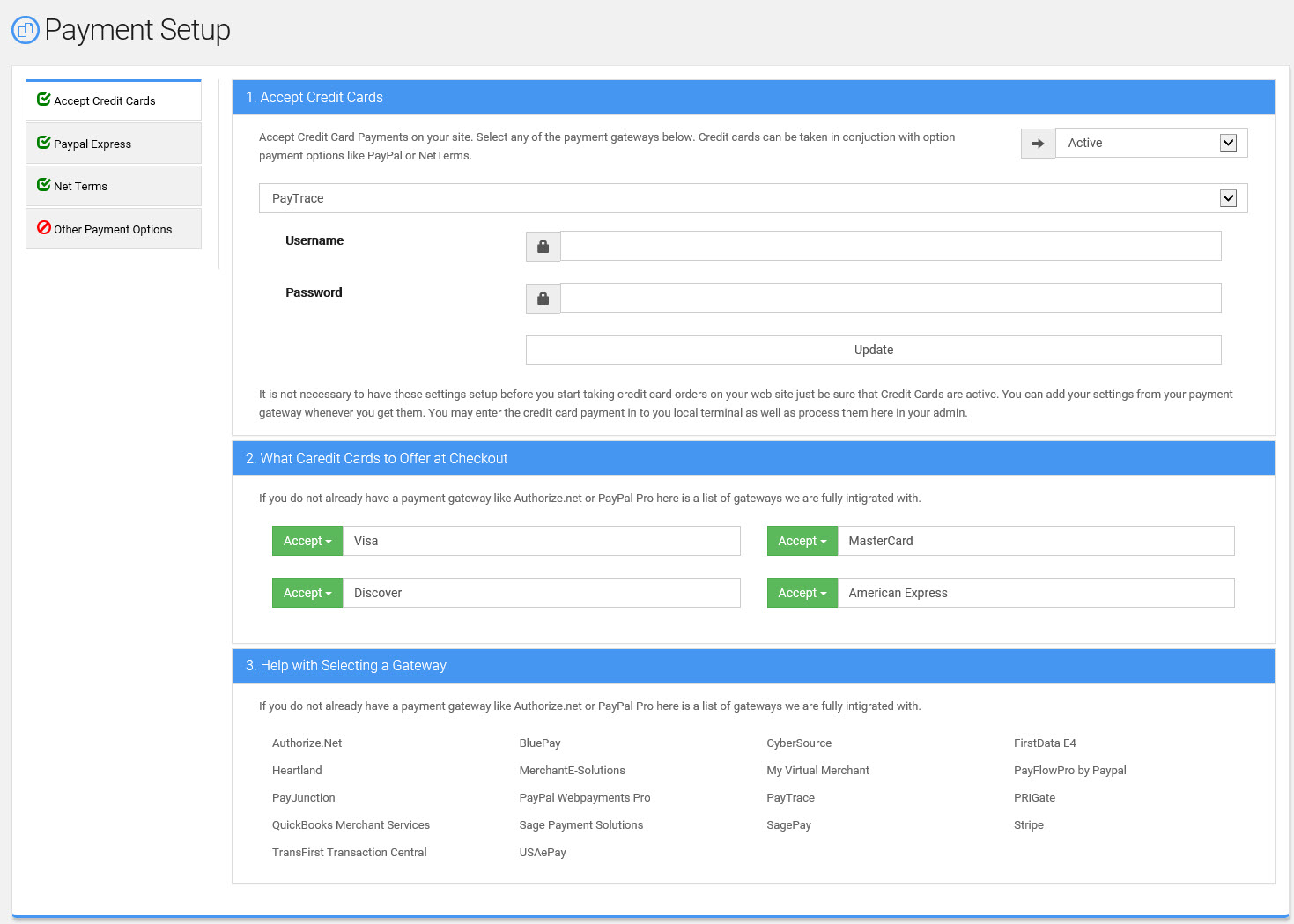
After the Payment Gateway is setup, customers can now use their credit card to checkout.