PayTrace : How to setup & get credentials
PayTrace Setup:
Once you have your PayTrace account you need a "API Enabled" user name and password. If you were emailed this, the email will have text simular to this:
If you do not already have an API User continue. If you do then skip to the section below on "Entering Your API Credentials"
To setup a new API user in PayTrace follow the steps below.
- Go to the PayTrace website "https://paytrace.com" and login to your account using your PayTrace login provided to you by PayTrace.

- Now that you are logged in in the left menu look for "Users" and click on it.
- This will open to a sub-menu Click on "New User"
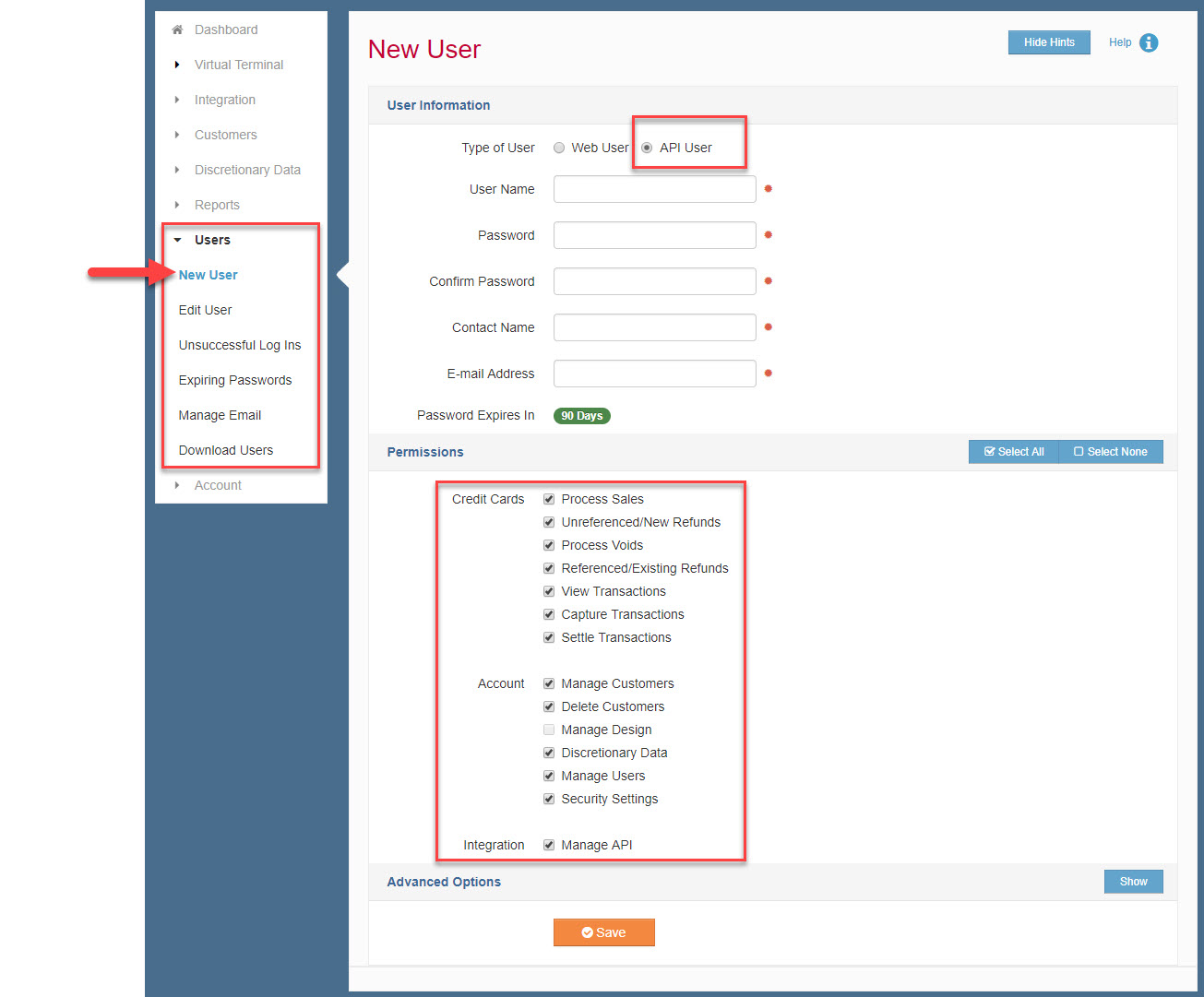
- Now Fill out the form using the above image as a guide. Be sure to select "API User" for user type.
- Keep your user name and password someplace to use in the next step.
- Click on "Save"
Enter Your PayTrace User name and password in to Power-eCommerce
From your Power-eCommerce Admin follow the steps below.
- Go to Settings -> Payment Setup
- In 1. "Accept Credit Cards" section, select your Gateway.
- Select "PayTrace" in the drop down menu.
- Add your credentials for your selected Gateway.
- Click the “Update” button to save your changes.
- Be sure that you have also set "Accept Credit Cards" to “Active” it is was not already.
- Last Select the types of credit cards you want to accept in section 2." What Credit Cards to Offer at Checkout” (Visa, MasterCard, Discover, American Express)
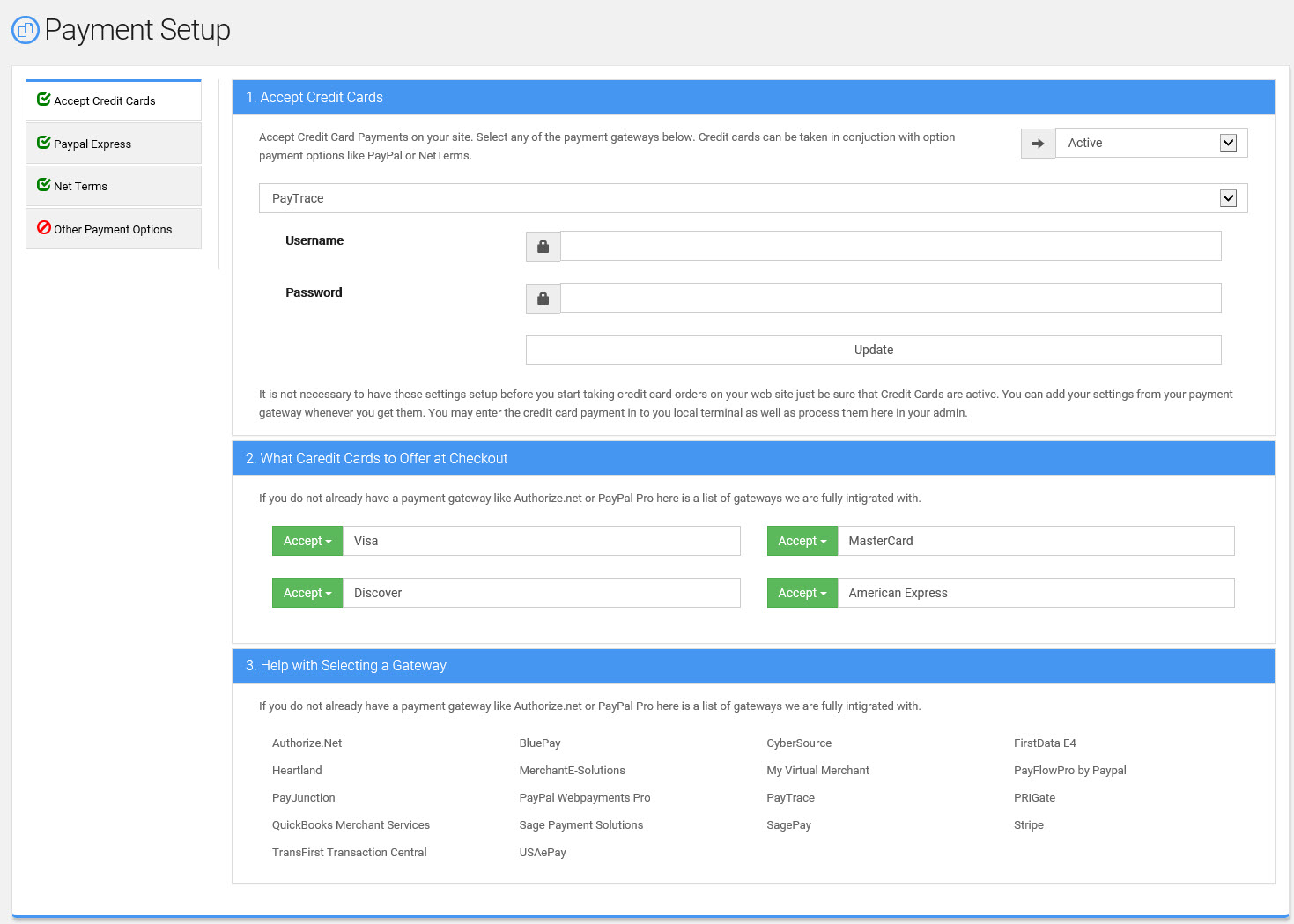
After the Payment Gateway is setup, customers can now use their credit card to checkout.