Custom Pricing & Custom Price Rules for Customers
By default, the price (Customer Price) set in your product's "Overview" tab of a product. is the price that appears to your shoppers.
However, you may have a situation where you need to set a special price or "Custom Price" for a specific customer. For example, a customer may have been given a "Custom Price" in order to secure there business/order.
Another possible situation where you may need custom price displays is one when you need to adhere to MAP (Minimum Advertised Price) rules from your distributors/manufacturers.
To give a customer a "Custom Price" follow these steps:
- Go to Customers --> Customer List
- Search for the Customer you want and click "View"
- Click on the "Custom Price" Tab.
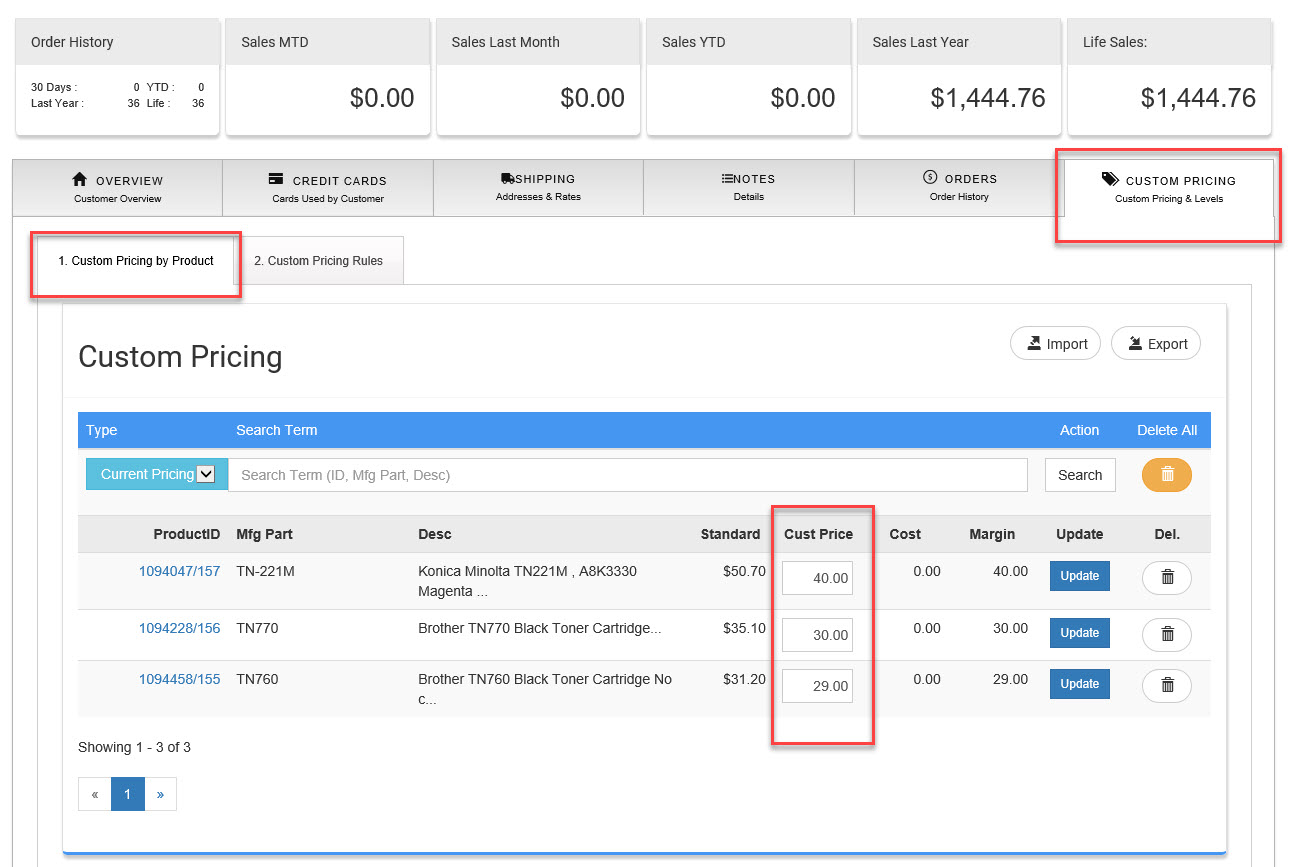
- To change a "Custom Price" simply update the new price and click "Update"
- To "Add" a new Customer Price" change the "Current Pricing" option to "Add Pricing"
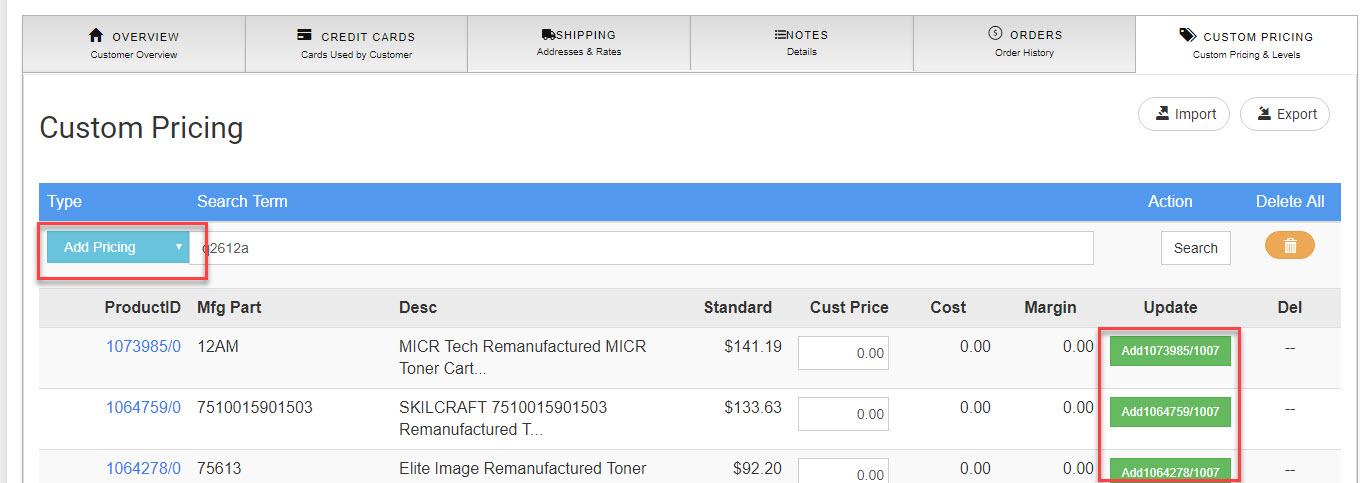
- Search for the product for this customer.
- Enter a "Customer Price" and click "Add"
- This customer now has a special price for that product on your store.