Customer Groups - Pricing Rules
By default, the price (Customer Price) set in your product's "Overview" tab of a product. This is the price that appears to your shoppers.
Customer Group Pricing Rules Features:
- Price by Product Manufacture
- Price by Product Condition
- Markup from Cost+
- Mark Down from MSRP
- Or Use a Price Level
- Restricted to members of the "Customer Group"
There are 3 places where different types of Pricing Rules can be setup:
- Customer Level (1st Position)
- Group Level (2nd Position)
- Site wide (3rd Position)
Getting Started with Customer Group - Pricing Rules
You may have a situation where you need to set a special pricing Rules for a "Customer Group" out side the standard pricing you have setup for general customers.
- Go to Customers --> Customer Groups
- Click "View" next to the "Customer Group" you want to make Pricing Rule changes to.
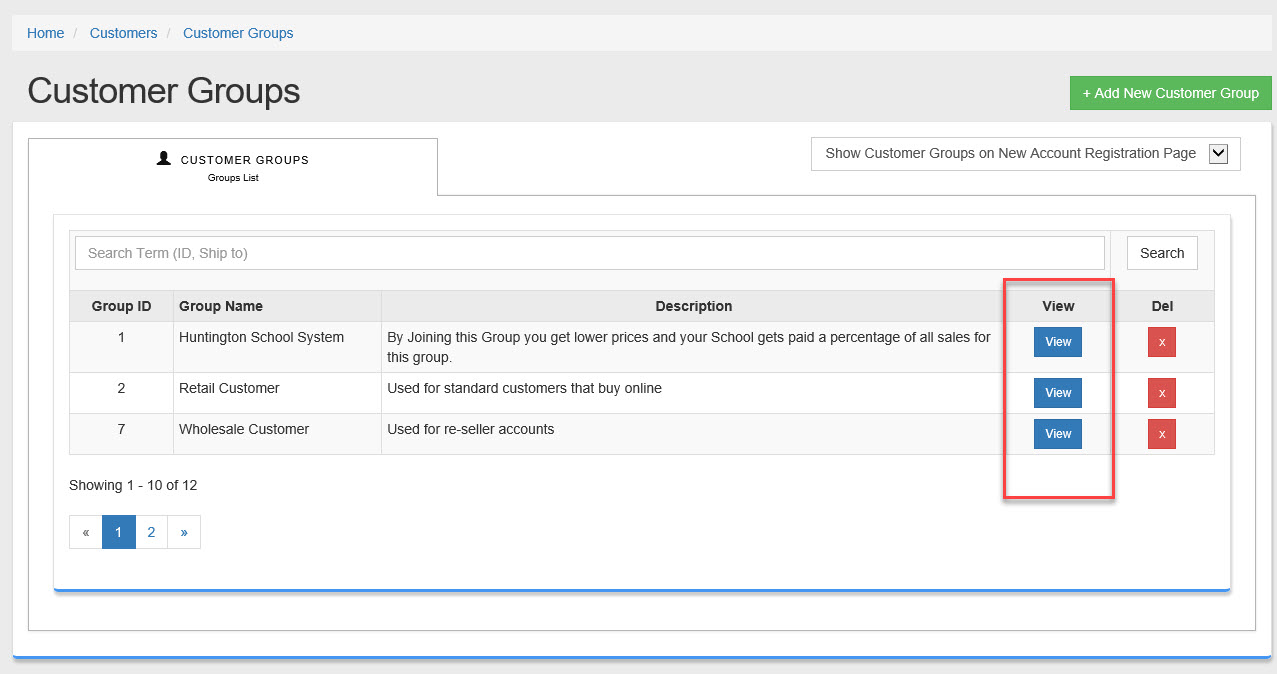
- Click on the "Group Pricing Rules" Tab.
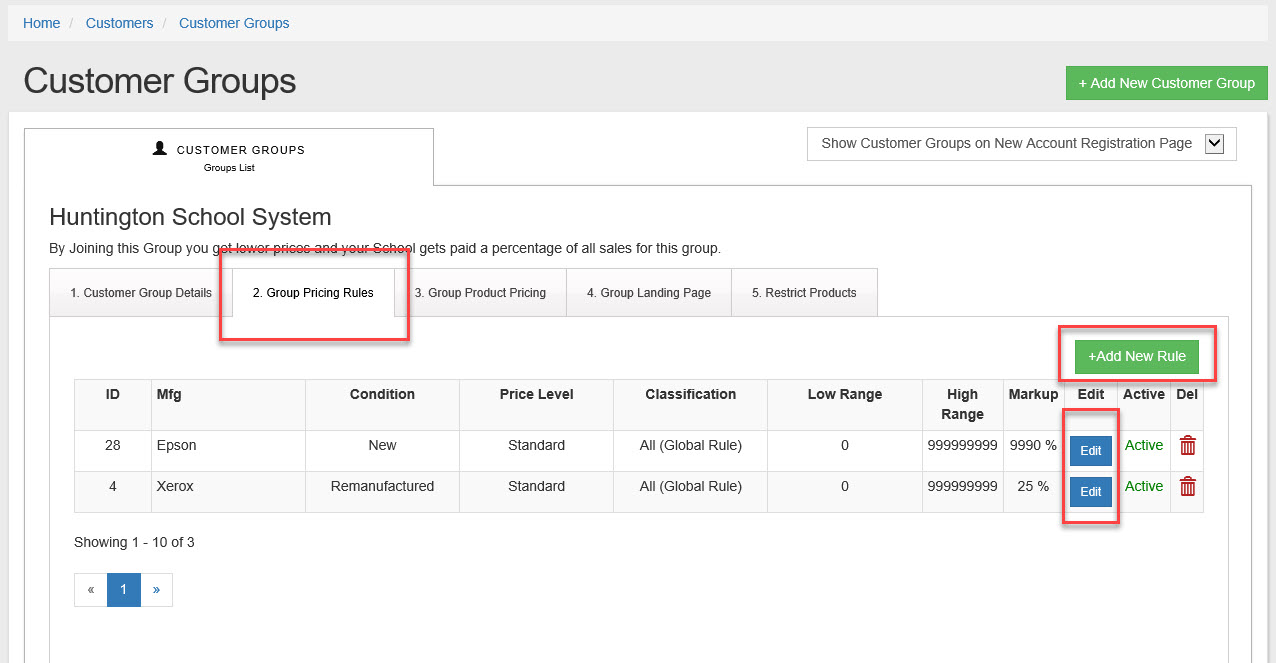
- To Add a new Rule click on "+Add New Rule" or to Edit a rule click on the "Edit" button you wish to edit.
- You will see the screen shot below for both Add or Edit.
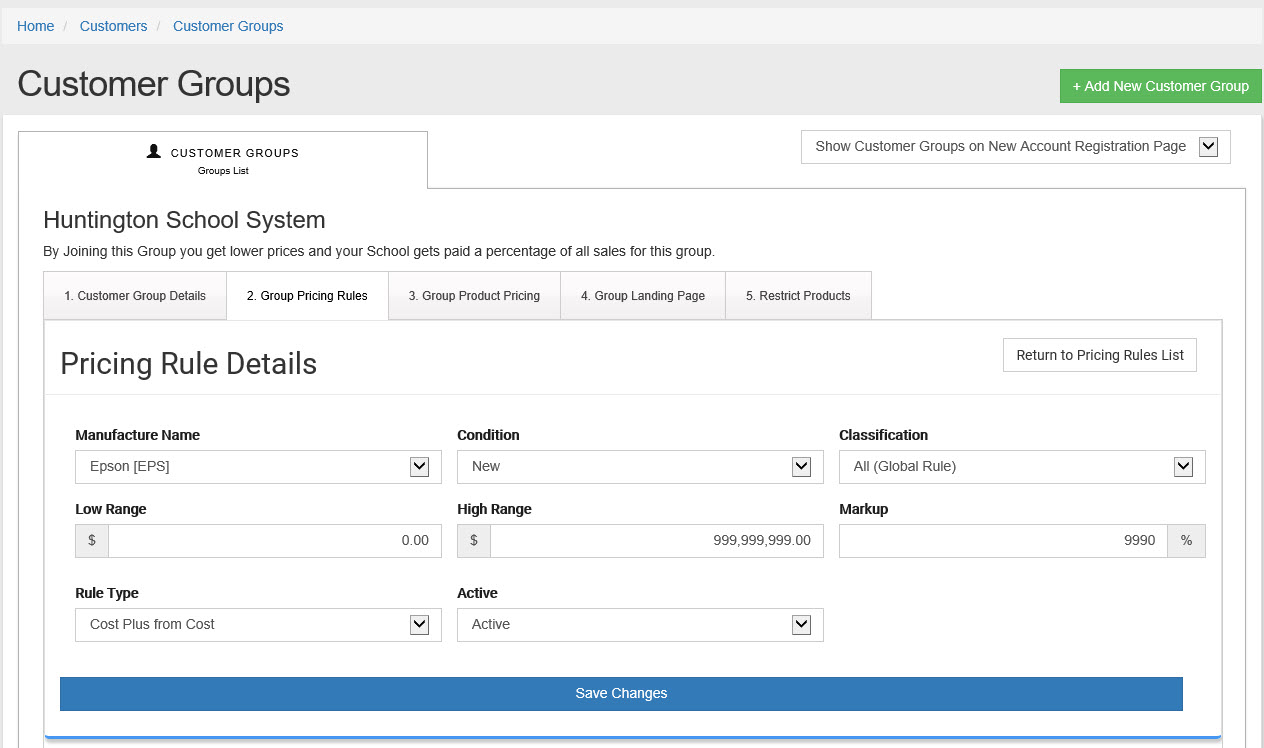
- The only difference between site wide Pricing Rules and Groups Pricing Rules is you must select a Manufactures and a Product Condition you cannot set a Global rules for all Manufactures and all Product Conditions.
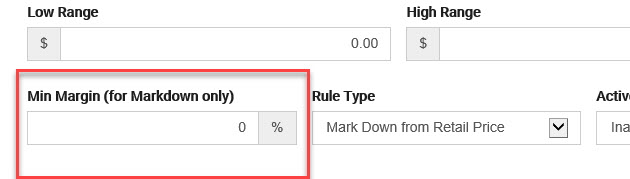
From Here will will go though each of the settings for the Group Pricing Rules. Note that the screen shout will change based on if you select "Cost Plus from Cost" or Mark Down from Retail Price". Mark Down has an addition field that will need to be filled in to prevent a product from selling at a loss.
Setting Up the Rule:
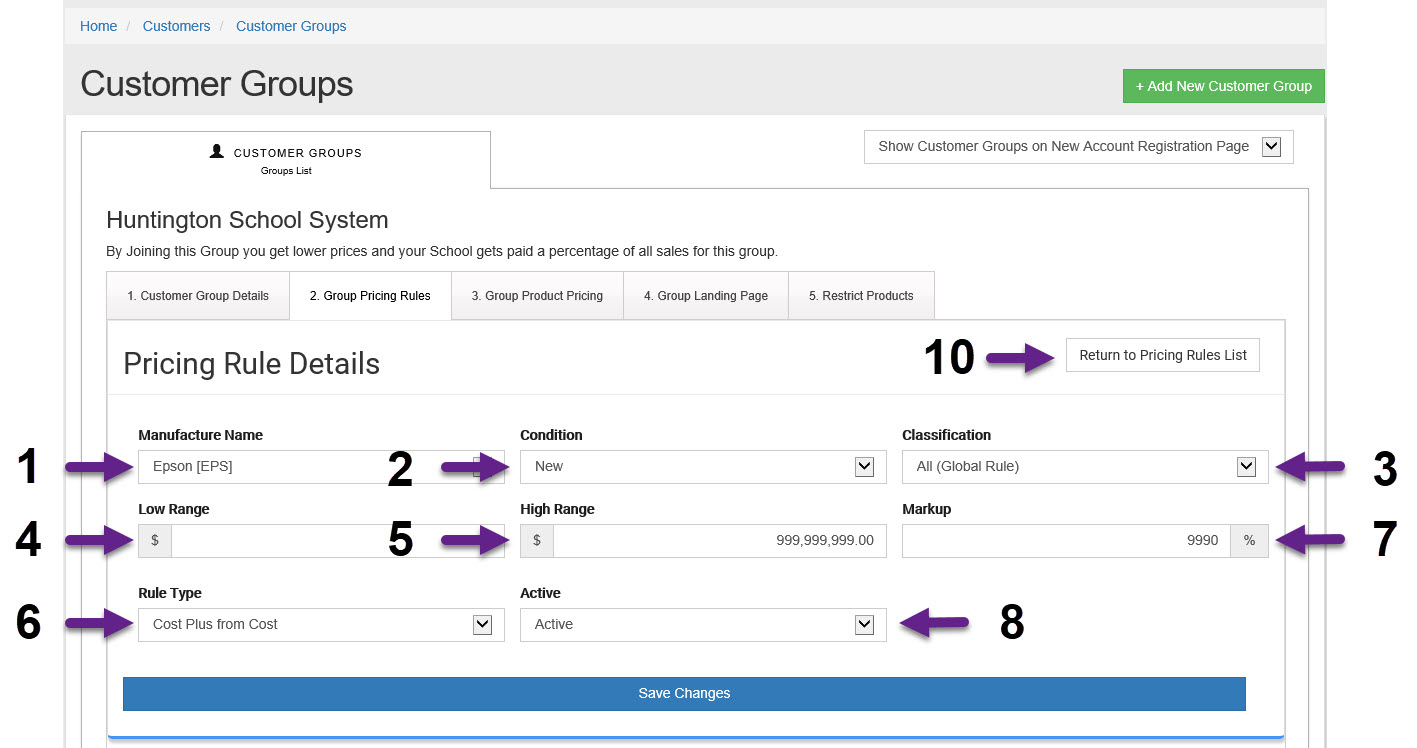
- Manufacture Name
Select the Manufacturer for the this rule. You must select a manufacture, you can add as many rules as needed to cover other manufactures not covered in this rule. - Condition
Select a Product Condition here. Most product conditions are "New", "Used", "Remanufactured" or other.
- Select your product
-
This is the lowest product cost this rule will be used for. If you set the -
This is the highest product cost this rule will be used for. If you set the - Rule Type
There are 2 options to select from here:
"Cost Plus from Cost" uses the cost of the given product to markup the selling price of the product. If a product cost $10 and you set the markup to 50%(see #7a below) the Selling price will be $15.00
"Mark Down from Retail Price" this used the Retail Price (MSRP) to calculate a price. If you mark down a product by 20%(see #7b below) with a MSRP of $100 the selling price will be "$80.00" (see #9 below for loss protection). - Markup or Markdown
a. Markup % this is the % you wish to markup a product by from the products cost. Markup of 50% on a cost of $10 gives a selling price of $15
b. Markdown % set the mark down % here. (i.e. 20% with a MSRP of $100 the selling price will be $80) - Active:
Turn this rule on and off without deleting it. Active means the use is being used while inactive means the rules is NOT being used. - The Minimum Margin helps protect you from selling an item below cost when using the Mark Down pricing method. Setting this to 10% will make sure that is the Mark Down selling price calculated off MSRP will not sell for less than 10% over cost. If you leave this setting at 0% the system will not let it sell below cost using a Pricing Rule.
- "Return to Pricing rules List" this button will return you to your list of rules.