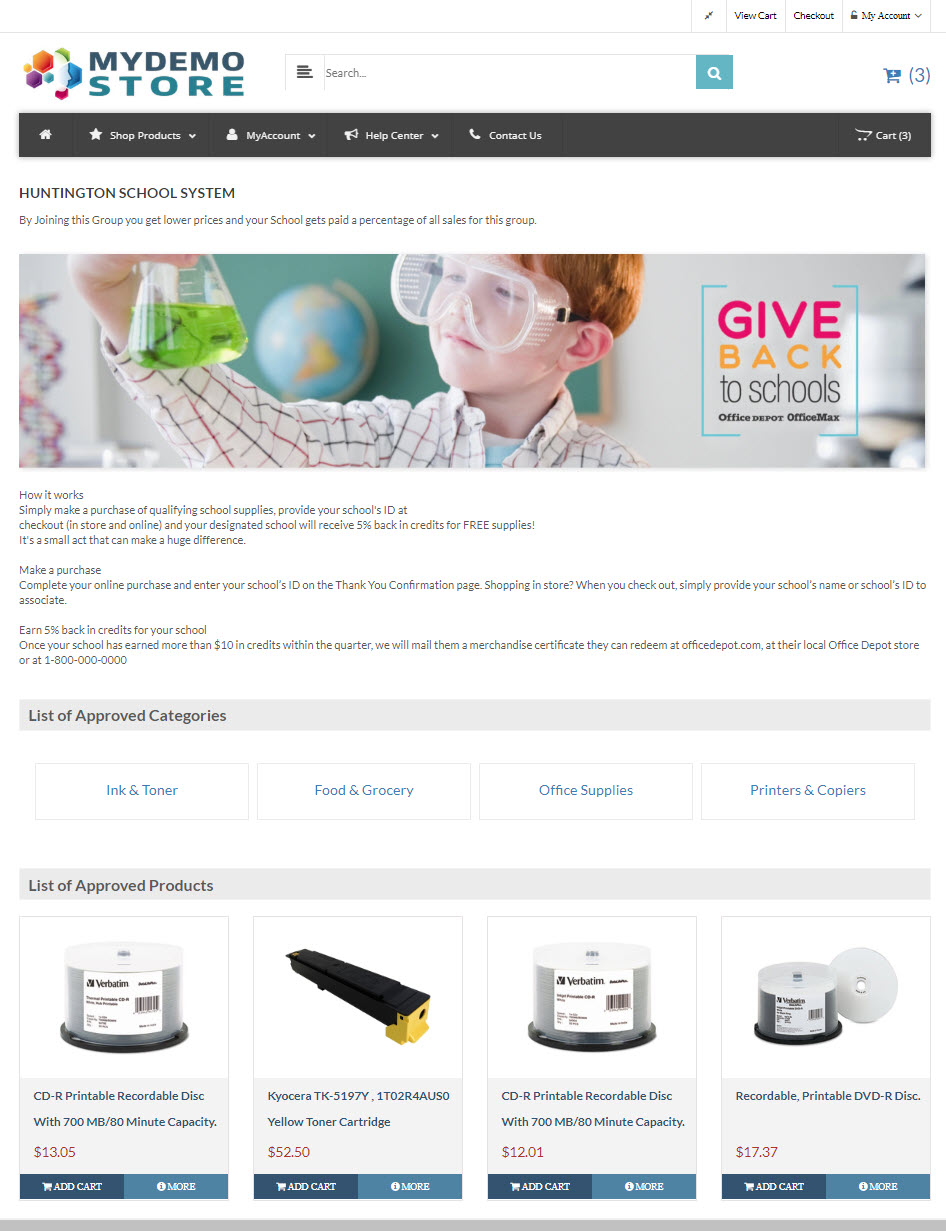
Customer Groups - Landing Page
To create a custom landing page for a Customer Group follow these basic steps.
- Go to Customers --> Customer Groups
- Search for the Customer Group you would like to work on and click "View"
- Click on the "4. Group Landing Page" Tab.
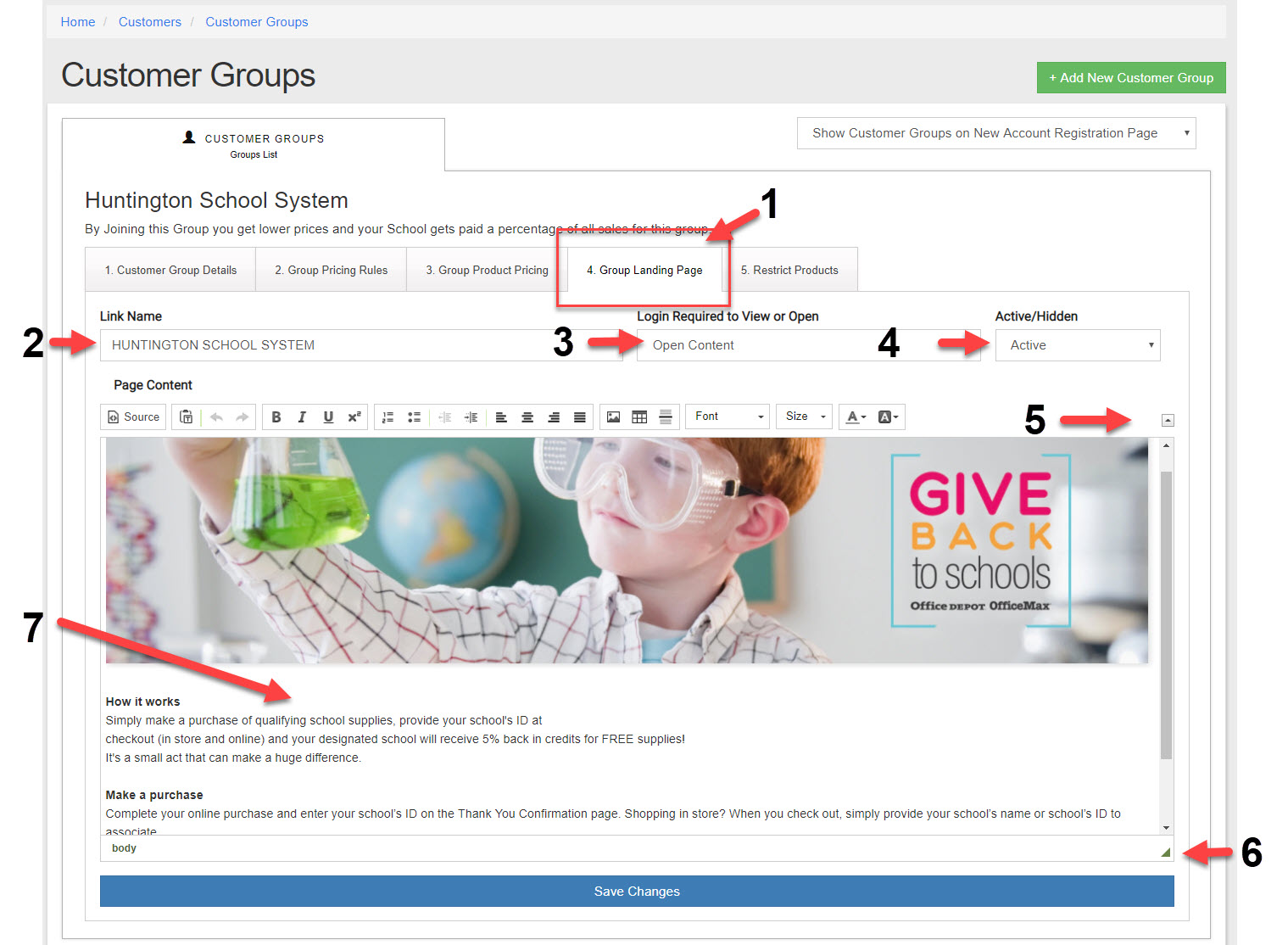
- : Enter the name of the Landing Page note that this is not used for anything in a Group Landing page its more informational.
- : Keep as "Open Content" this setting is not used for Group Landing pages.
- : Keep Active however, this setting is not used for Group Landing pages.
- Toggle the HTML/WYSIWYG menu on and off click the small menu icon.
- Expand the visible screen area: Mouse over the small triangle and click and drag up to down to increase the size of the working window. This well allow you to view more or less of the content.
To Edit the Content of this Page use the HTML/WYSIWYG editor and add or change the content to meet your needs.
- Now enter your HTML or Text in the text area. You can use the WYSIWYG editor or click on the "Source" button to edit the raw HTML code.
- Click "Save Changes"