How to setup your Currency
To change the currency that your store uses follow the steps below.
- go to Settings ->General Settings
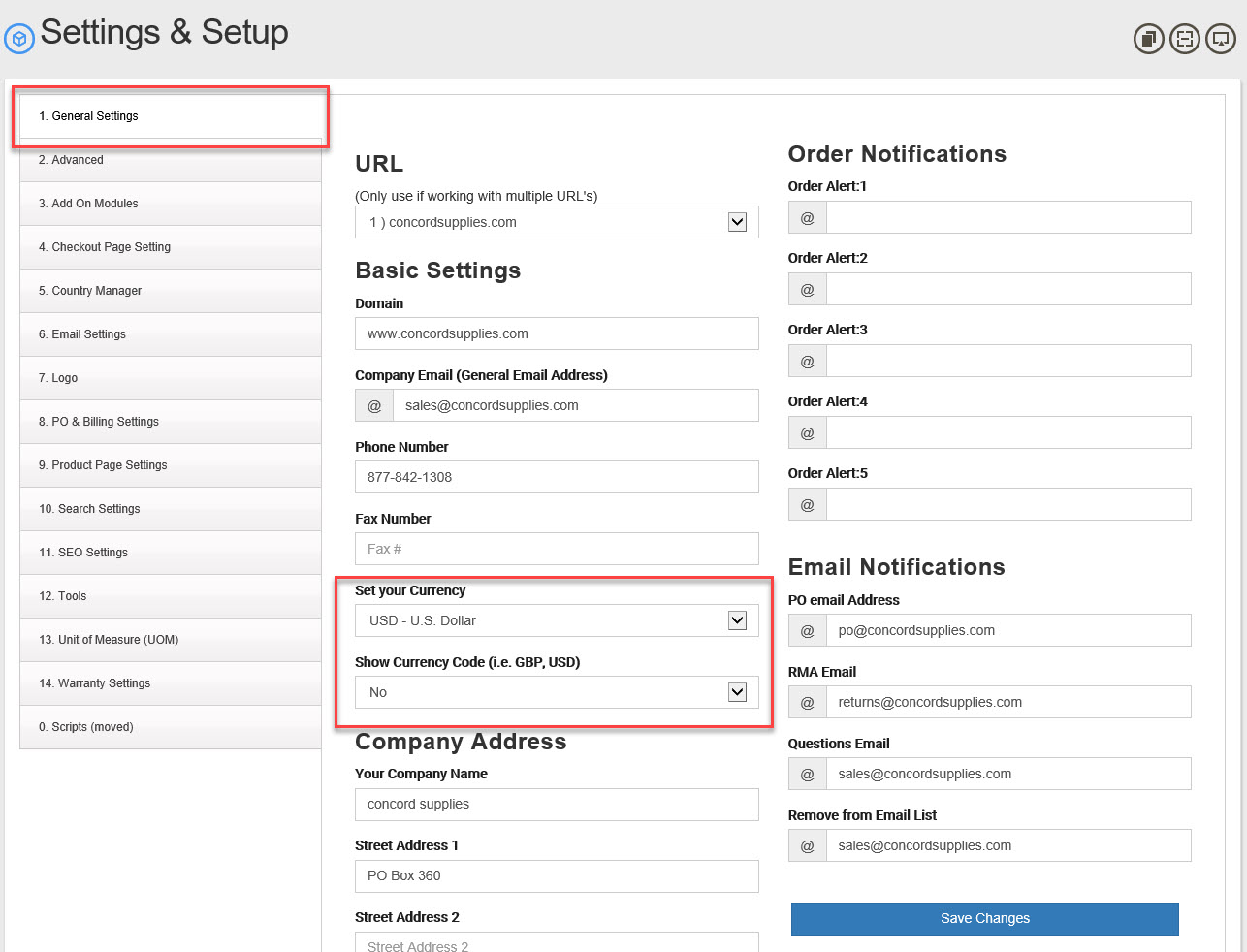
- Look for the option "Set your Currency" then select your currency from the drop down menu to specify the standard 3 letter currency code that will be used for your online payment gateway. This will also set the i.e. $, €, or ¥ for your store ($1.00, €1.00 ¥1.00 and so on). For example:
- USD - US Dollar
- CAD - Canadian Dollar
- MXN - Mexico Peso
- GBP - British Pound
- EUR - Euro
- Now set "Show Currency Code"
- No is default and will only show the "$" or other before the amount of 1.00 ( $1.00 ).
- Yes will show the USD, CAD, MXN or GBP after the price ( $1.00 USD ).

- "Save Changes" at bottom to commit your changes.