How Do I Edit Products
This article is a quick reference on how to edit your products manually in your store. We will go over all of the main fields involved in editing a product – please keep in mind there are many more features available to you for this process, so the more information you add, the more descriptive your products will be.
Editing a Product
- Go to Products ->Product List
- Search for the product you want to edit (i.e. "TN450", "Organic Green Tea 10" and so on)
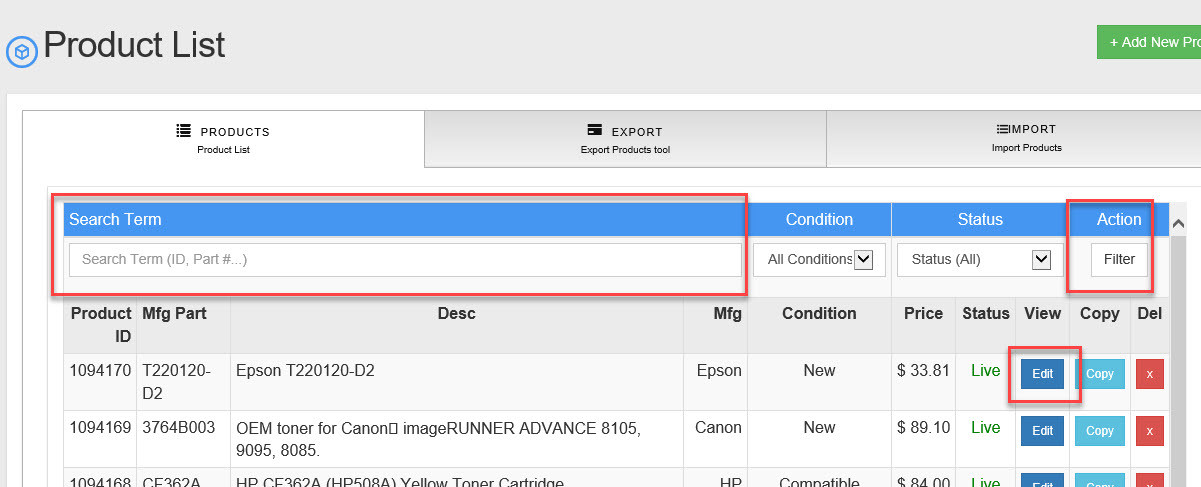
- After you entered the search term click "Filter".
- Select the product/item you need to edit by clicking on "Edit"
- You will see a screen like this:
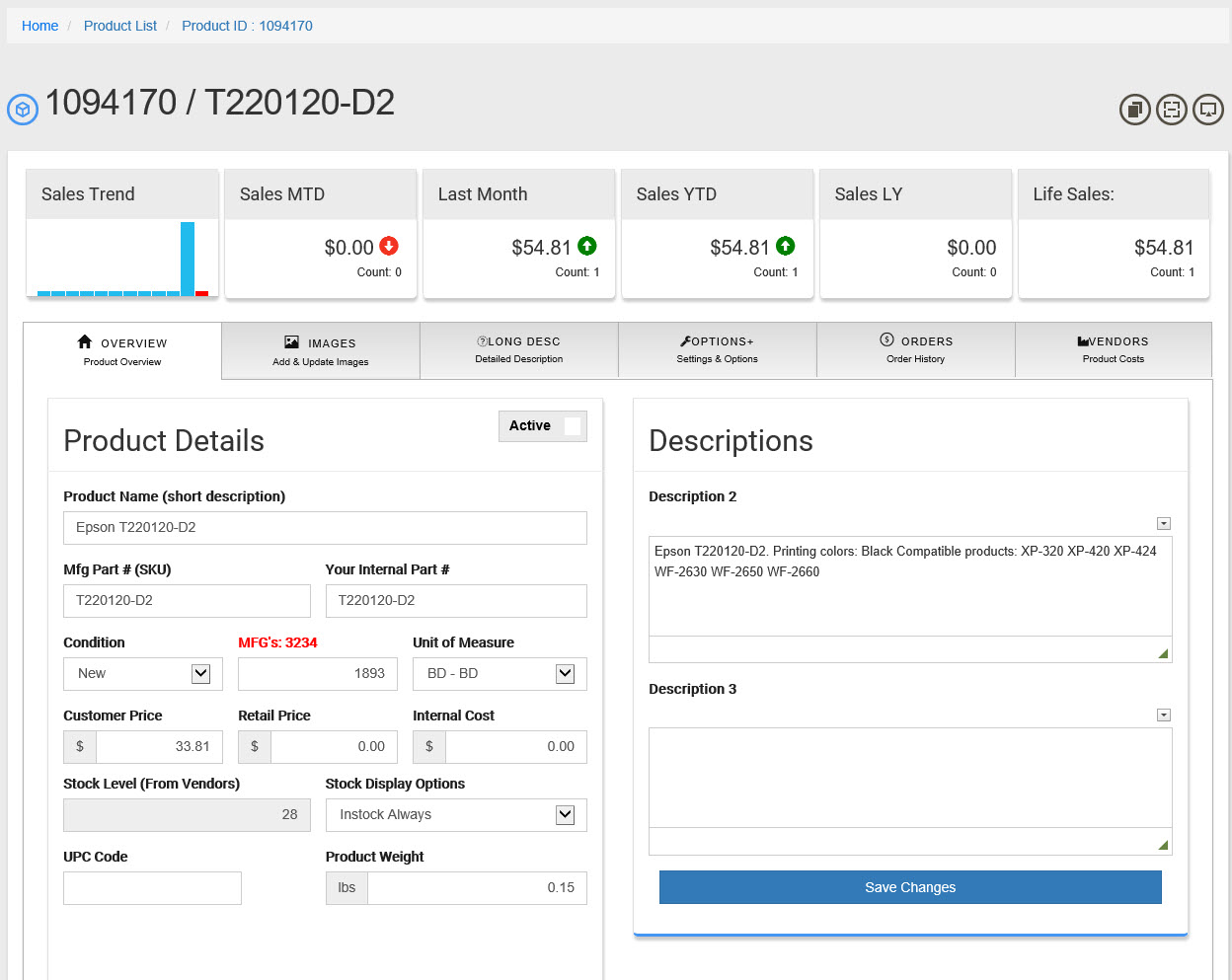
- Now you can make changes to the product/item as you need to.
- Below is a shot list of some of fields and what they do. There are too many options to list them all here.
- Make sure you click save before navigating away from this page. Otherwise, moving to another page or tab before saving will discard any unsaved information entered.
List of Basic Options on the "Overview" Tab
- ID
This is the product/item's unique identifier for the product can not be changed. - Product Name (short description)
This field will be used for the product's name as you would like it to appear on the store front. - Mfg Part # (SKU or MPN)
This field can be used for the product's Manufacturer Part Number if applicable to the item - Your Internal Part #
This field can be used you or your vendor to identify the product/item. - Condition
Used to designate if a product in New, Used, Open Box, Generic, Remanufactured and so on.. - Manufacturer
The Manufacturer of the product/item. If there are over 1000 Manufacturers only the ID can be used otherwise a drop-down menu will show all your Manufacturer's. - Unit of Measure (UOM)
The unit of measure (UOM) helps us count “How much” of an item or “How many” counts of an item is involved in a product/item. (Each, Case, Box, Dozen, Ream and so on). - Customer Price
This it the Price that will be displayed on your web site's store. . -
The price the manufacture sets as the retail or standard price to see the product for. -
You can use this field for your internal cost of the product if you like however we recommend added you as a vendor and adding your cost to the vendors for this product. This will allow you to see all product costs for this item in one place and send a PO to your warehouse if needed as well. - Stock Level (From Vendors)
This field is automatically updated from the total inventory from the vendors tab.. - Stock Display Options
Set the way your product inventory will display on your store. - GTIN/UPC Code
This is the product's Global Trade Identification Number and is typically the universal identifier for the product. For example, the product's UPC number could be considered a GTIN. -
The "Shipping" weight of the product/item goes here. If this product came from a vendor's product feed it will automatically set for you, but you can still change it. - Description 2
Medium length Description of the product. (for a long description see the tab "Long Desc") - Description 3
Great for Bullet points or selling points.