How to Edit a Category or Sub-Category?
Once your categories are created, they can be further fine-tuned by editing the various category options available to you.
- Go to Products > Category Manager
- Click on the "Category Group" that contains the category you would like to make changes to.
- Select the category from the list you'd like to edit and "Edit"
- To Edit the Category click on the orange arrow this will open the Category details for you to edit.
- From here you can change the name and add a description or HTML.
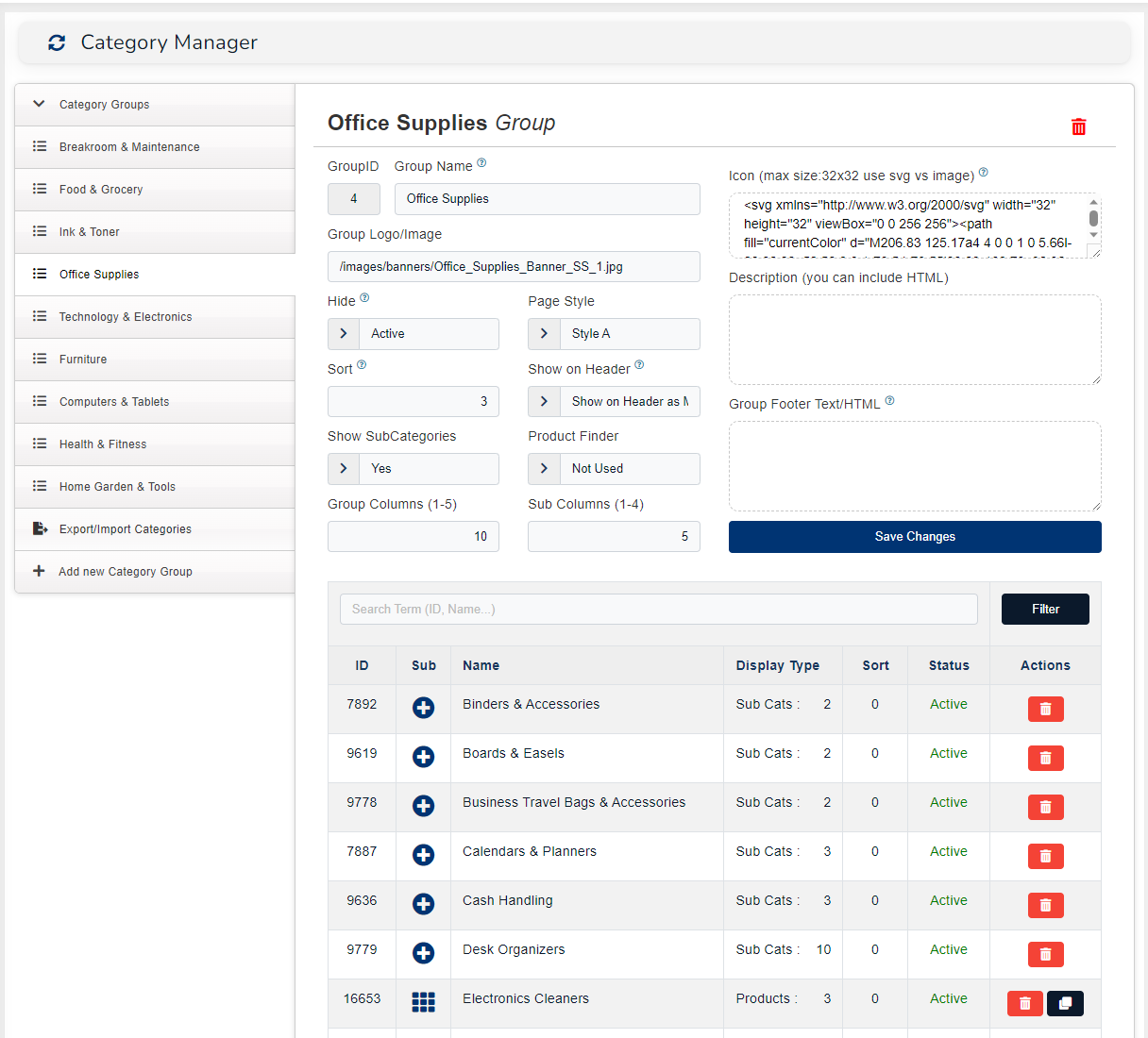
- Make your changes and Click on "Save Changes"
Category Details
Once you are looking at the Category Details here are the options avalible to you and what each one of the settings/options effects your store.
- Category : This is the name Category you may change the Category name here this will change what displays on your store.
- Category Description : A brief description of the Category can be left blank. This will display only on this Category page under the Category Name on the store.
- Hide : This have two options "Hide" or "Active" Category will be displayed on your store and "Hide" will not display this Category. However if you hide a Category the products will still be available in search or other Categories they belong to. (If you wish to hide the products from search you must hide the products you would like to hide).
- Sub-Categories : This tells your store if the "Category" has other Categories listed under it. Yes it does or not it does not. If you select "Yes" no products will show under this Category only its Sub-Categories will display. If you select "No" then only products will display under the Category.
- Sort : This is the "Sort" order you would like a Category to be displayed in the list of Categories. "0" is the default. If all your Categories are "0" and you change one to "1" that Category will display last. Sort will sort by 0,1,2,3... lowest number 1st. Most likely you will need to update all Category sort values in that Category Group if you want to have the Categories sort as you wish.
- Product Finder : This option has been discontinued.
- "Narrow Results" This option has been discontinued (its now always on).
- Products Per Page : This option has been discontinued
- Description/HTML : This is where you can place a long description of the category or HTML if you want to add images or additional information in a format to your liking.
- Image/Banner: This image/banner will display under the category name on the category page.
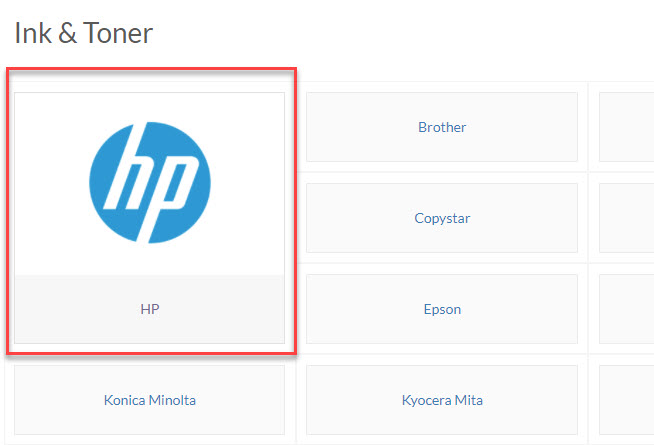
- Thumbnail Image : This will place a thumbnail image on the Parent category
- "Primary Category ID" Not Show in screenshot above: This is a reference to a different Category you wish to duplicate its products or Sub-Categories tree. If you add a category ID in this box the current category will not be able to have its own Sub-Categories or Products because it will use the ones in the ""Primary Category ID" field. This help in only having ot manage one category of products or categories when you need to have the category in more than one area of your store.
- Click Save after making any changes.