Call for Pricing
Call for Pricing is when a customer is viewing a product on your store and instead of seeing a price they see "Call for Pricing". By default "Call for Pricing" is turned off on products in order for your selling price to show to customers when they are on your store. We recommend only using this option sparingly most online shoppers if they do not see a price will leave your store immediately and look elsewhere. However, there are times when it can be useful. Follow these steps to turn on "Call for Pricing" on a given product.
- From your Admin go to Products --> Product List -->
- Search for the product you want to use "Call for Pricing".
- Click on "View"
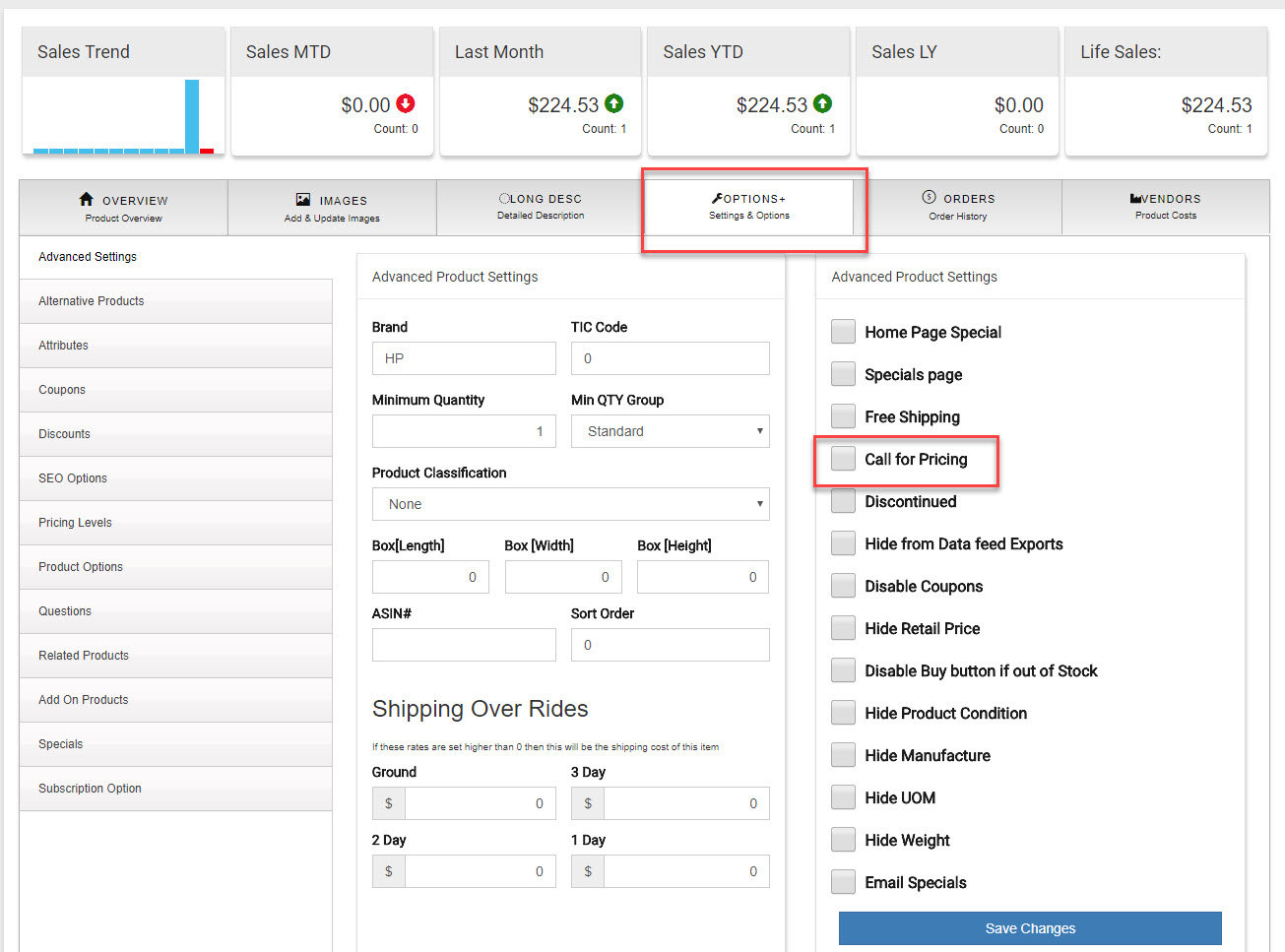
- Now click on the "Options" Tab.
- Now Check the box next to "Call for Pricing"
- Click "Save Changes"
Now go to the product on your store's web site and you will see "Call for Pricing" also the buy button is disabled. To give a specific customer a price on this item see the article on "Custom Pricing"; a customer with a Custom Price on a product will be able to see that price even if "Call for Pricing" is turned on for that product. Note: Pricing level prices will not show only a custom price if that customer is logged in to your store.
