How do I import Tracking Numbers via URL?
Once a customer has placed an order and you have a tracking number(s) to an order this URL Posting tool can help you automate the updating of tracking number(s) in to your Power-eCommerce store. This is useful as you can update the tracking numbers and send the tracking numbers to your customers quickly. To bulk upload via a CSV file see the article "How do I import Tracking Numbers via CSV File ?" Follow these steps to update a single tracking number.
First we need to get your "PassKeys" from your Power-eCommerce Admin settings.
- Go to Settings -> General Settings
- Navigate to the "Advanced" Tab.
- Look for "Access Keys"
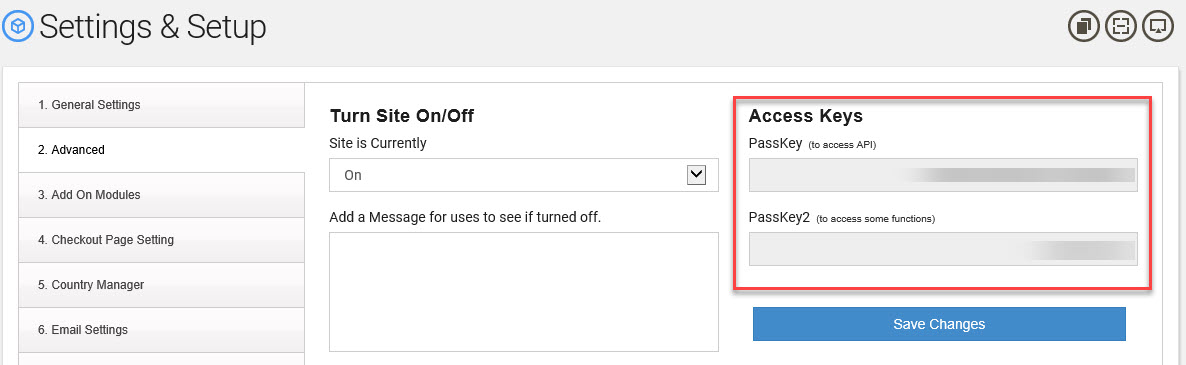
- Use both PassKey and PassKey2 to replace YourKey1 and YourKey2 with these values in the sample URL above.
Next you need the order number.
- This is an advanced function to we are assuming you will already have this.
- Replace OrderID=0000 with your order number.
Next you will need the line number of the Item ordered.
- If there was only one item orders then the LineNo will equal "1"
- Go to Sales -> Orders
- Select the order.
- Go to the "Shipping" Tab
- The "Item" column is the number we use as "LineNo"
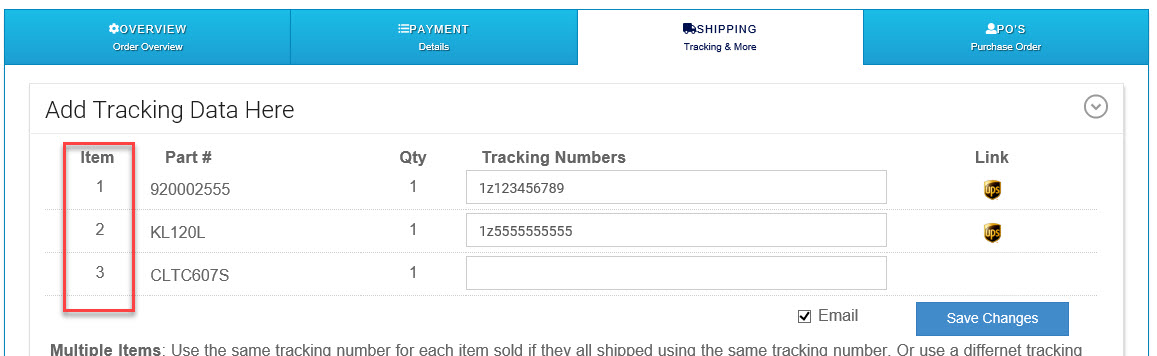
- Again this is an advanced function so we are again assuming you will be able to get this "LineNo" without having to view each order by the API or Order Export.
- Replace the "LineNo=x" in the sample URL with the corresponding item you are looking to update the tracking number with.
Next add your Tracking Number to the URL
- Simply replace the TrackingNo=1234567890 with your tracking number for this item.
Next Do you want an email sent to customer.
- You have the option to Email or not to Email the customer the tracking number.
- Send : Send=0
- DO NOT Send : Send=1
You can Post the URL with most any method you like.
- http://[YourStoreURL]/site/tracking_update.asp?PassKey1=YourKey1&PassKey2=YourKey2&OrderID=0000&Send=0&LineNo=1&TrackingNo=1234567890