Add a Message just below the 'Place Order' button
Some times it is necessary to have a message next to the submit order button for a number of reasons like "Freeze Warning" , "Shipments Delayed because of inclement weather" or other needs. In order to do this follow the steps below.
- Go to Settings -> General Settings -> "Checkout Page Settings"
- Look for "Checkout Footnote"
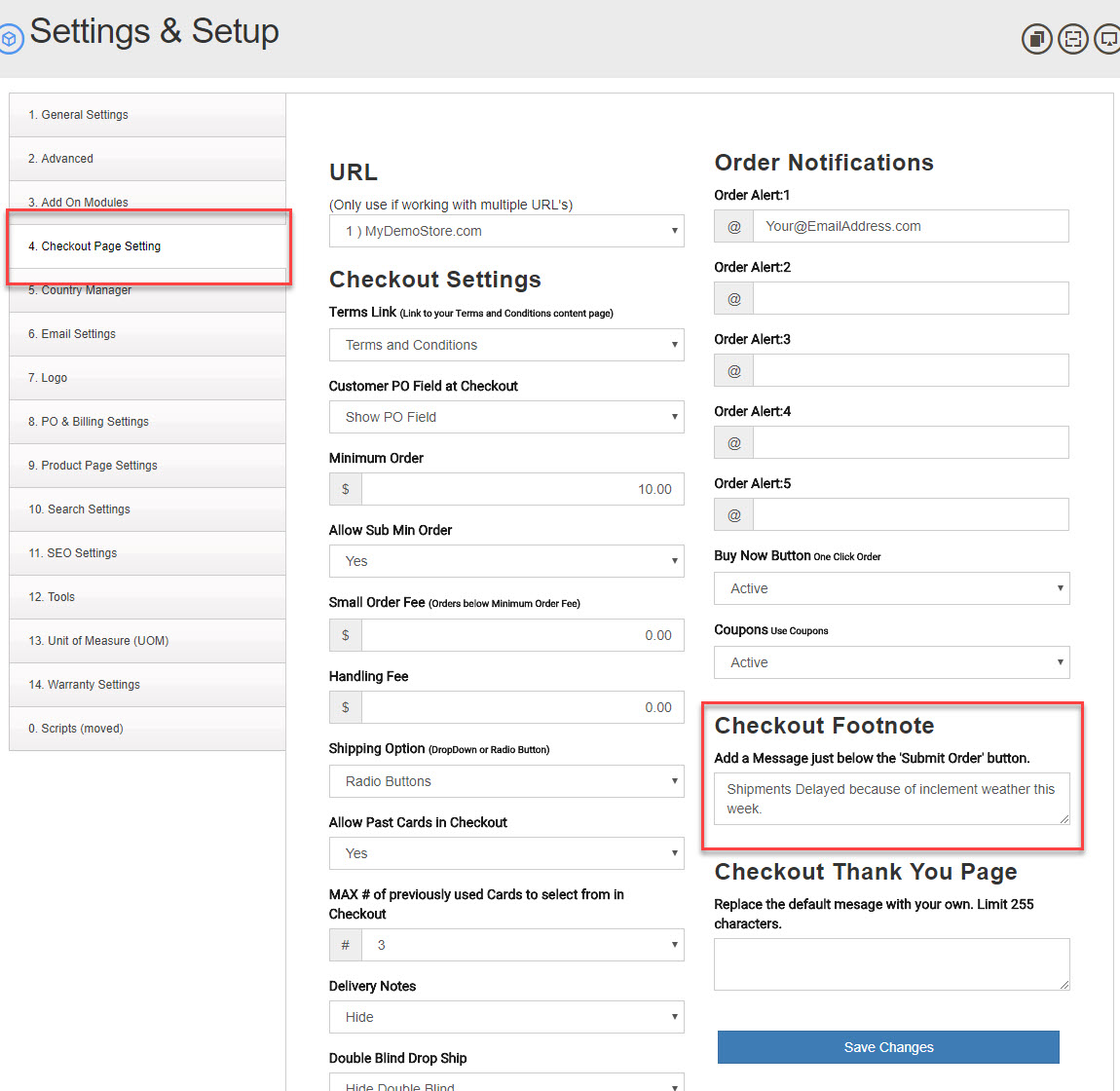
- Add your message there. You can use HTML if needed but limit the total size to 255 characters.
- Click Save Changes.
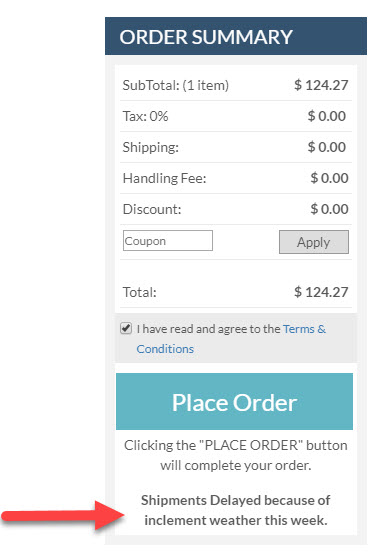
This can be changed any time to fit your changing needs.
","slug" :null,"extra_data":null,"draft":0,"visibility":"public","views":13,"position":0,"description":null,"created_at":"2018-05-09 18:23:10","updated_at":"2021-04-23 05:45:04","tags":[]}, ---------------------------------------- {"id":74,"title":"How to Add or Remove a Product on an existing Order","body":"After an order has been placed by a customer, you have the ability to modify the order by adding or removing products as needed. It is important to note that if the customer's credit card has already been charged after an order has been made, you will need to manually refund/charge the customer through your payment gateway to accommodate for the changes made.
To add products to an existing order
- Go to "Sales -> Orders"
- Look for the order you need to modify click "View" for that order.
- On the "Overview" tab to the far right of "Order Summary" you will see a + click on that.
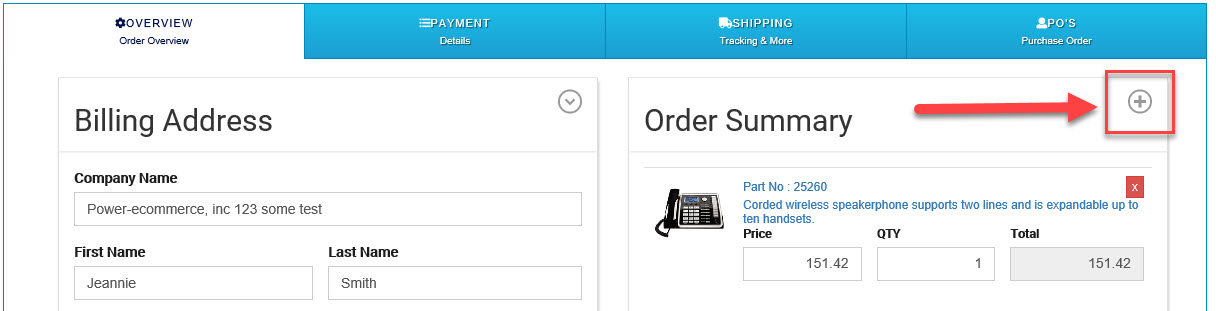
- Once you have clicked the "+" search for the product/item you want to add to the order.
- Now click on the "Select" button next to the product/item you need to add.
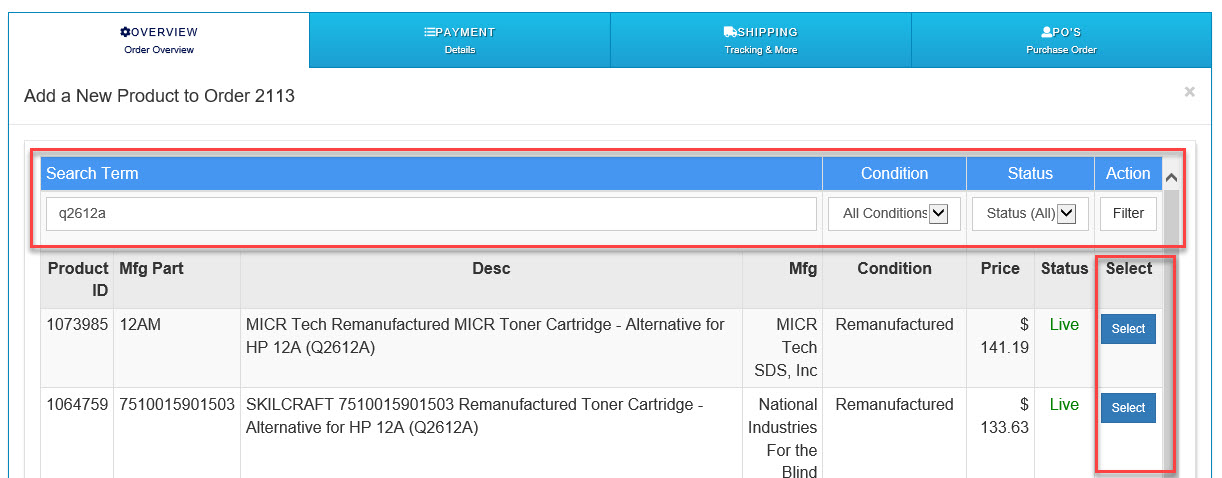
- Click the "Add to Order button next to the products you would like to add to the order.
- Once you hit select the order page will reload with the new item added.
- Now Click "Save Changes"
Removing Products from an Order
- Go to "Sales -> Orders"
- Look for the order you need to modify click "View" for that order.
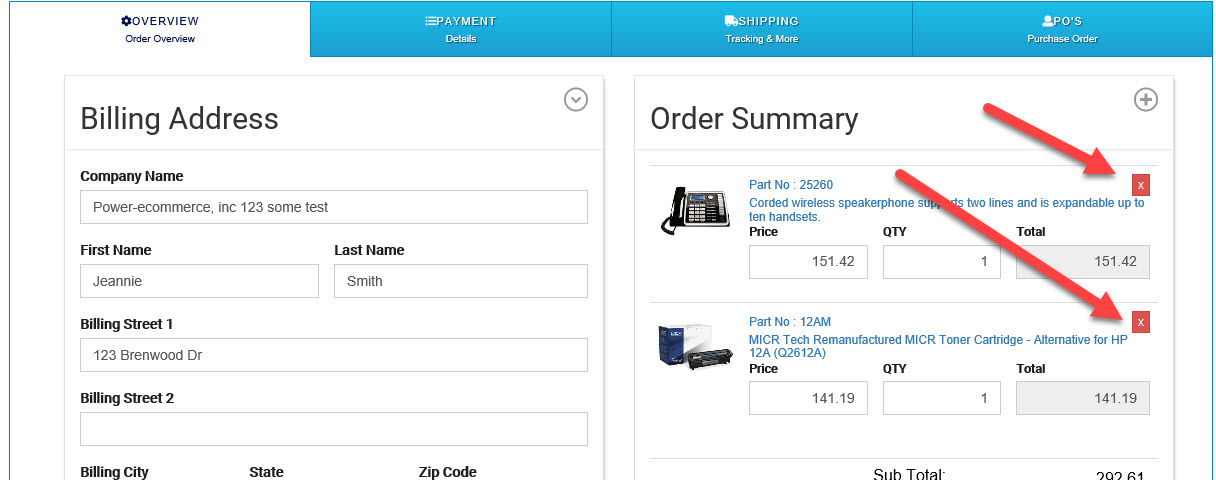
- On the "Overview" tab to the far right under "Order Summary" you will the items ordered by the customer.
- There is a small red "X" next to each item.
- Click on the red "X" for the item you want to remove.
- After you click on the red "X" you will get a popup asking "Are you sure you want to remove this item?"
- If you agree then click "Ok"
- The order will reload with the item removed.
- Note if you are using "Tax Cloud" or another tax service it will take a few extra seconds to contact the tax serivce to calculate the new tax and update both there system and yours.