Adding video's to your store
There are a number of different video's to your store. We will only focus on two. YouTube and a general video method.
After you have the type of video and have the code you want to copy and paste see "Now Add the Video code to your store" (scroll down to find).
Adding Other Video links
In order to add a video you will need the link to the video (for YouTube video's skip to 'Adding YouTube video' below) for other video links use one of the following methods.
Replace the demo link in red below with your video link can
- Direct Link:
Use if your video link has an ".mp4" or ".mp3" or other type extension on the end of the link.
<video width="1100" height="auto" controls>
<source src="http://techslides.com/demos/sample-videos/small.mp4" type="video/mp4">
<source src="http://techslides.com/demos/sample-videos/small.mp4" type="video/ogg">
Your browser does not support the video tag.
</video>
Copy and paste the above sample code with your video replacing your video link and paste it in to one of the HTML editors in your stores admin. See "Now Add the Video code to your store" (scroll down past Adding YouTube Video to find). - iFrame Method
Use this if there is no extension on the end of the link at the end of the link.
<iframe allowfullscreen="" frameborder="0" width="1100" mozallowfullscreen="" src="https://player.vimeo.com/video/6370469" webkitallowfullscreen="" ></iframe>
Adding YouTube video
In order to add a video to your site there are a few things we need to do.
- Navigate to your YouTube video you want to display on your store.
- Look for the "Share" link under the video then "Embed".
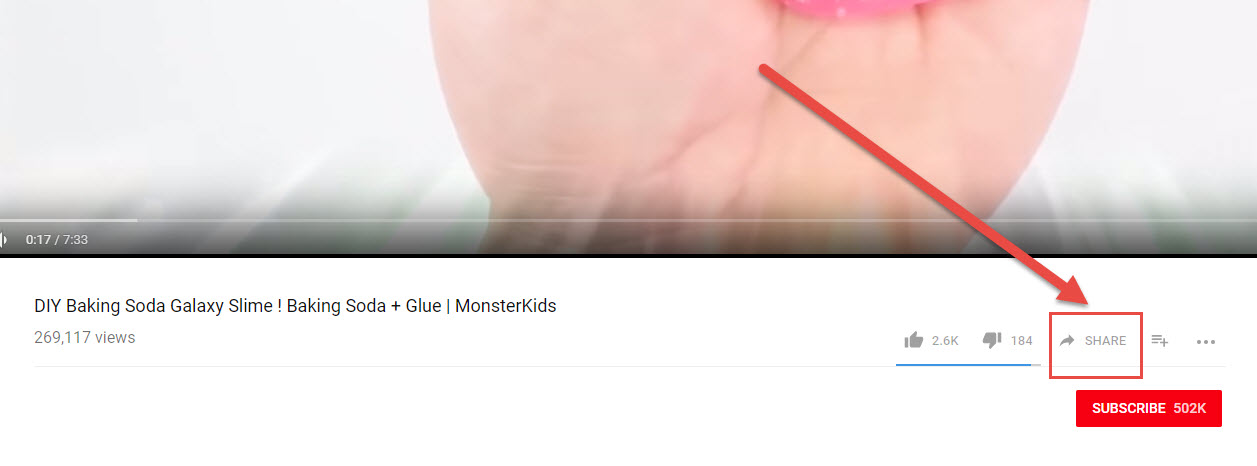
- Change the settings to your needs. We would suggest unchecking "Show suggested videos when the video finishes" this could expose your users to a competitors video.
- Now Copy the "Embed Video" code see the image below.
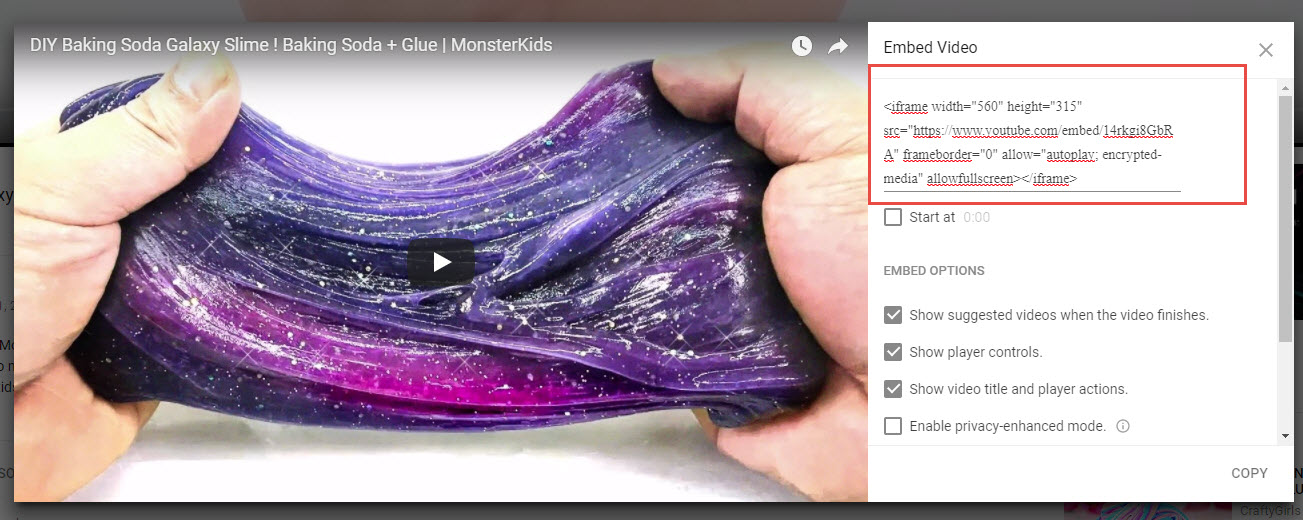
- Now add this "Embed Video" code to one of the areas of your site below.
Now Add the Video code to your store
Home Page:
You can add a video to a number of places on your home page. HTML 1, 2, 3
- Go to Settings - > Store Design -> #8 Home Page Content/HTML
- Click on "Source"
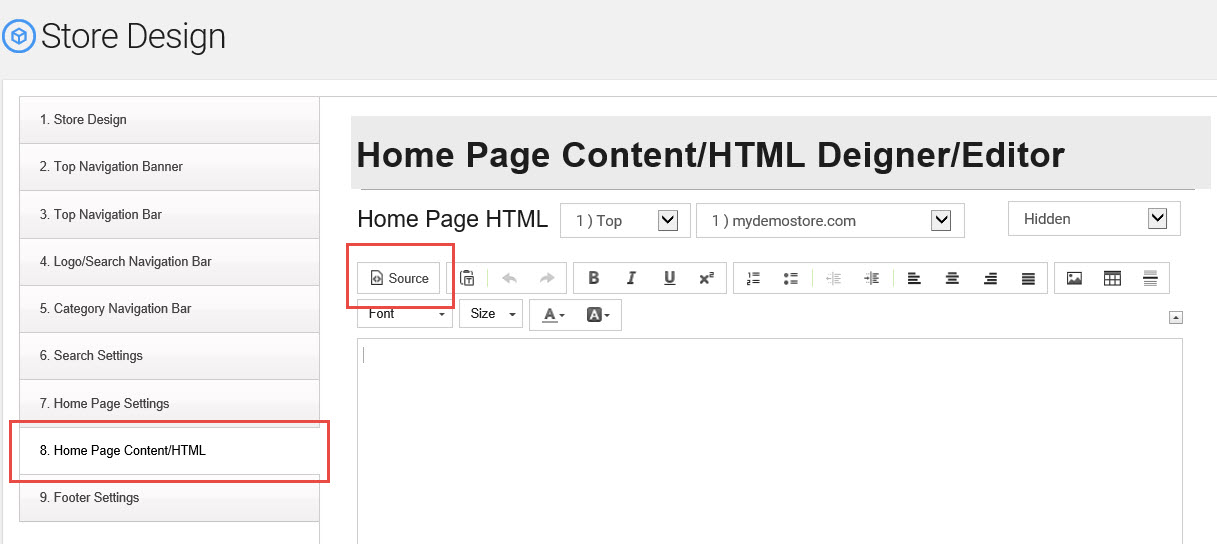
- Now Paste the copied embed video code here.
- You will need to edit the size to fix your needs and add any additional text or HTML. If you add non-HTML click on "Source" again to move from HTML to the WYSIWYG editor.
- Click "Save Changes"

Here is the exct source code that we put in the "Home Page HTML"
<table cellpadding="0" cellspacing="0" frame="0">
<tbody>
<tr>
<td width="50%"><iframe allow="autoplay; encrypted-media" allowfullscreen="" frameborder="0" height="315" src="https://www.youtube.com/embed/14rkgi8GbRA?rel=0&showinfo=0" width="560"></iframe></td>
<td style="padding-left: 20px; font-size: 16px;" valign="Top" width="50%"><b>What is Lorem Ipsum?</b><br />
Lorem Ipsum is simply dummy text of the printing and typesetting industry. Lorem Ipsum has been the industry's standard dummy text ever since the 1500s, when an unknown printer took a galley of type and scrambled it to make a type specimen book. It has survived not only five centuries, but also the leap into electronic typesetting, remaining essentially unchanged. It was popularised in the 1960s with the release of Letraset sheets containing Lorem Ipsum passages, and more recently with desktop publishing software like Aldus PageMaker including versions of Lorem Ipsum.</td>
</tr>
</tbody>
</table>
Product Page:
You can add a video to a number of places on a product page. Description 2, 3 & Long Description (We reomend using the video in the "Long Description").
- Go to Products -> Product List
- Search for the product you would like to add the video to.
- Click on "View" that product
- Navigate to the "Long Description" Tab
- Open the WYSIWYG editor (see image below and blue arrow and box)
- Select "Source" and paste in your Embed code from YouTube or any other video hosting site.

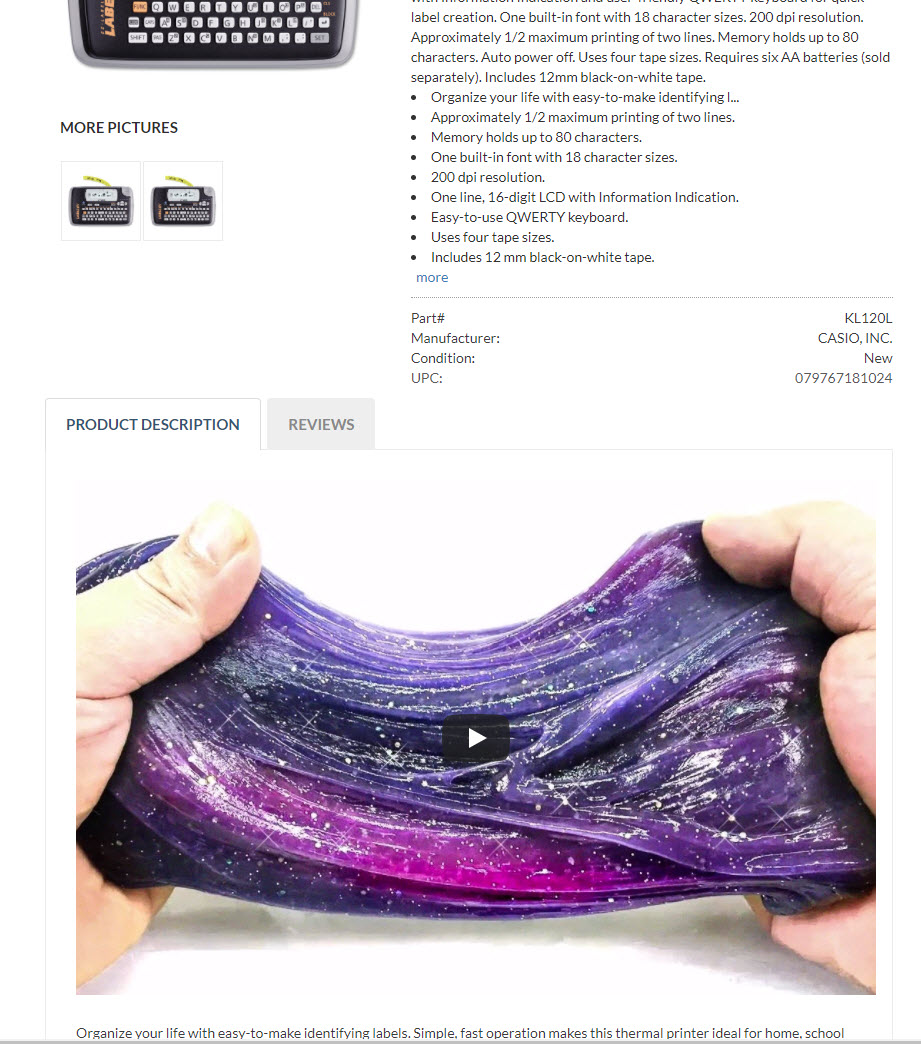
See the result below.
We recommend making a backup of your HTML or Content for the area you are working in first before using either of these suggestions. This will make it easy to restore your prier work if you make a mistake.