How can I make a Coupon Code?
When using a coupon on your store, shoppers will typically enter the coupon code onto their checkout page.
Three types of Coupons:
- Free Shipping Coupon.
- Percent(%) off Order.
- Dollar($) amount off Order.
- Go to Sales -> Coupons
- Click on the "+ New Coupon" button at the top right of the page.
- Enter a Coupon Name, Short description of the promotion. Internal use only.
- Enter a "Coupon Code" this is the code used by the customer to put in the cart or checkout page (i.e. FREESHIP or 10OFF). DO NOT use spaces.
- Enter a Short description / Notes for your use only.
- Select the "Type ($ or %)" This option lets you choose between a dollar off for the coupon or a percentage off.
- Enter Amount($ or %) use a dollar amount off if you selected dollar amount in "Type" above if you select "%" then enter the percentage off you would like this coupon to be as a decimal IE 10% off would be 0.10 , 20% off would be 0.20 etc..
- "URL Coupon is active on" Select all by default unless you want it only to show on a given URL this is an advanced option not needed in most uses.
- Start Date (00/00/0000) enter the data you want the coupon code to be active.
- End Date (00/00/0000) enter the data you want the coupon code to no longer be active.
- Free Shipping Coupon - Select this if you would like this coupon to give free ground shipping. If so % or $ off from above are not needed.
- Active/Disable select if you want the Coupon Code to be active or disabled.
- Maximum Discount : Enter the Maximum dollar amount that this coupon can be. (i.e. 25.00, 100.00 and so on).
- Maximum Uses : Set the Maximum number of times this Coupon Code can be used (i.e. 10, 20, 99999....). Setting this to Zero (0) will make it unlimited.
- Click "Add Coupon"
Sometimes it is necessary to restrict coupons to only some manufactures and product conditions or exclude them from manufactures and product conditions. By default, a coupon is set to “Do Not use Restrictions” there are three options here:
- “Do Not use Restriction” : manufacture & product conditions are ignored in the calculation of the coupon.
- “Only for Included manufactures” : Include in Coupon: Only products with manufactures and product conditions listed will have use of the coupon.
- “Exclude manufactures from Coupon” : Exclude from Coupon: All products can use the coupon except the items listed.
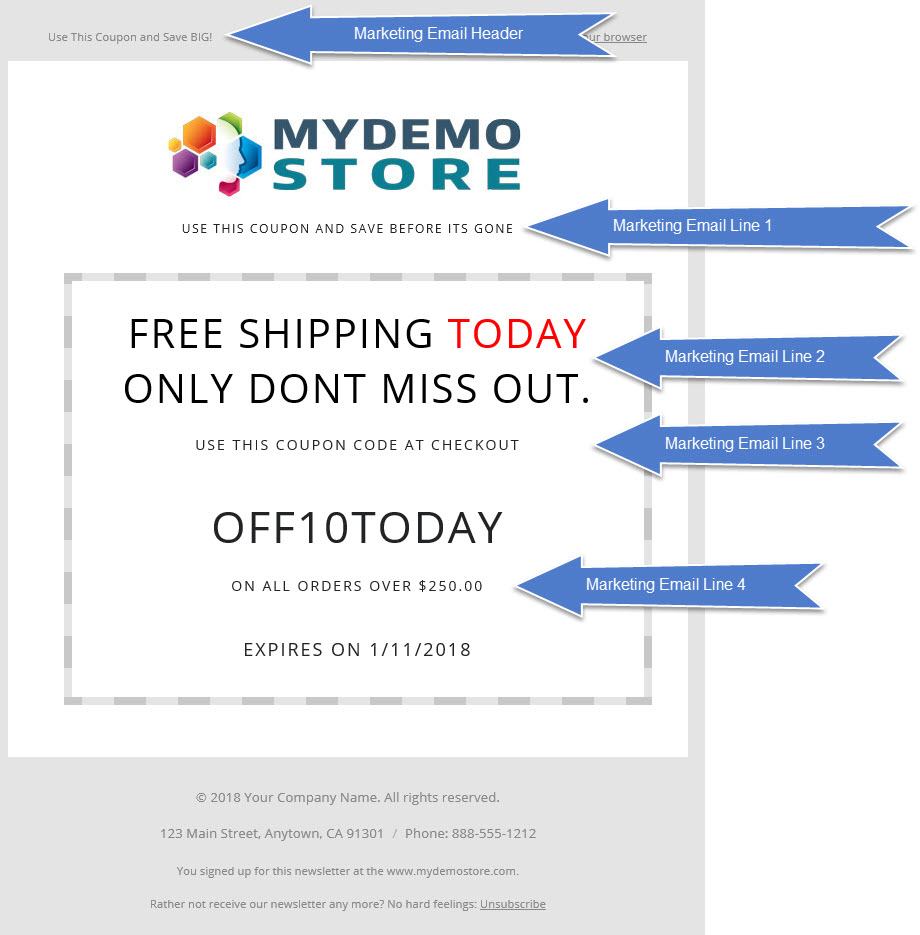
Additional Marketing Options if "Mass Email Module" is installed.
These settings below are only used for Emailing of Coupon Codes using the "Mass Email Module" if installed.
- Marketing Email Header (is shown top left outside the main body)
- MarkMarketing Email Line 1 (is shown direcly under your logo HTML is ok)
- Marketing Email Line 2 (is the main selling point for the coupon and is the 1st line inside the coupon email HTML ok)
- Marketing Email Line 3 (is displayed under the main selling point above HTML ok)
- Marketing Email Line 3 (is displayed under the main selling point above HTML ok)