How do I use the Product Discounts?
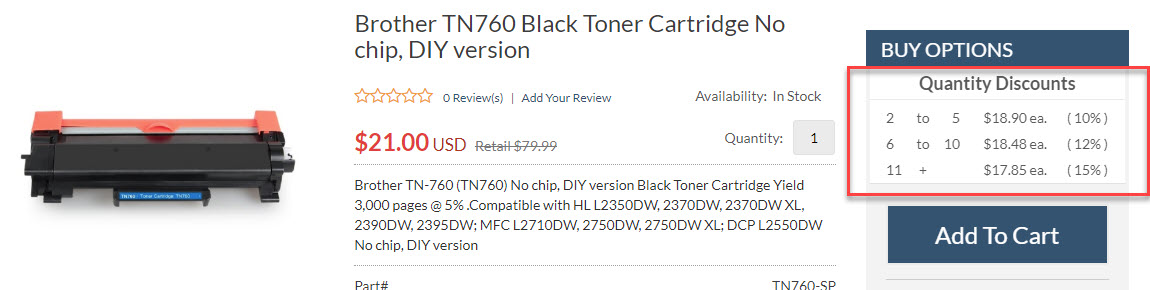
Power-eCommerce allows you the option of setting up discounts based on the quantities of products ordered. For example, you may want to offer your customer a discount on a particular item if purchased in quantity. This can be done in the product's "Discounts" Tab under product "Options" when you are in the product details.
Quantity Pricing
- Go to Products -> Product List
- Search for the product you'd like to set quantity discount pricing for and click Edit.
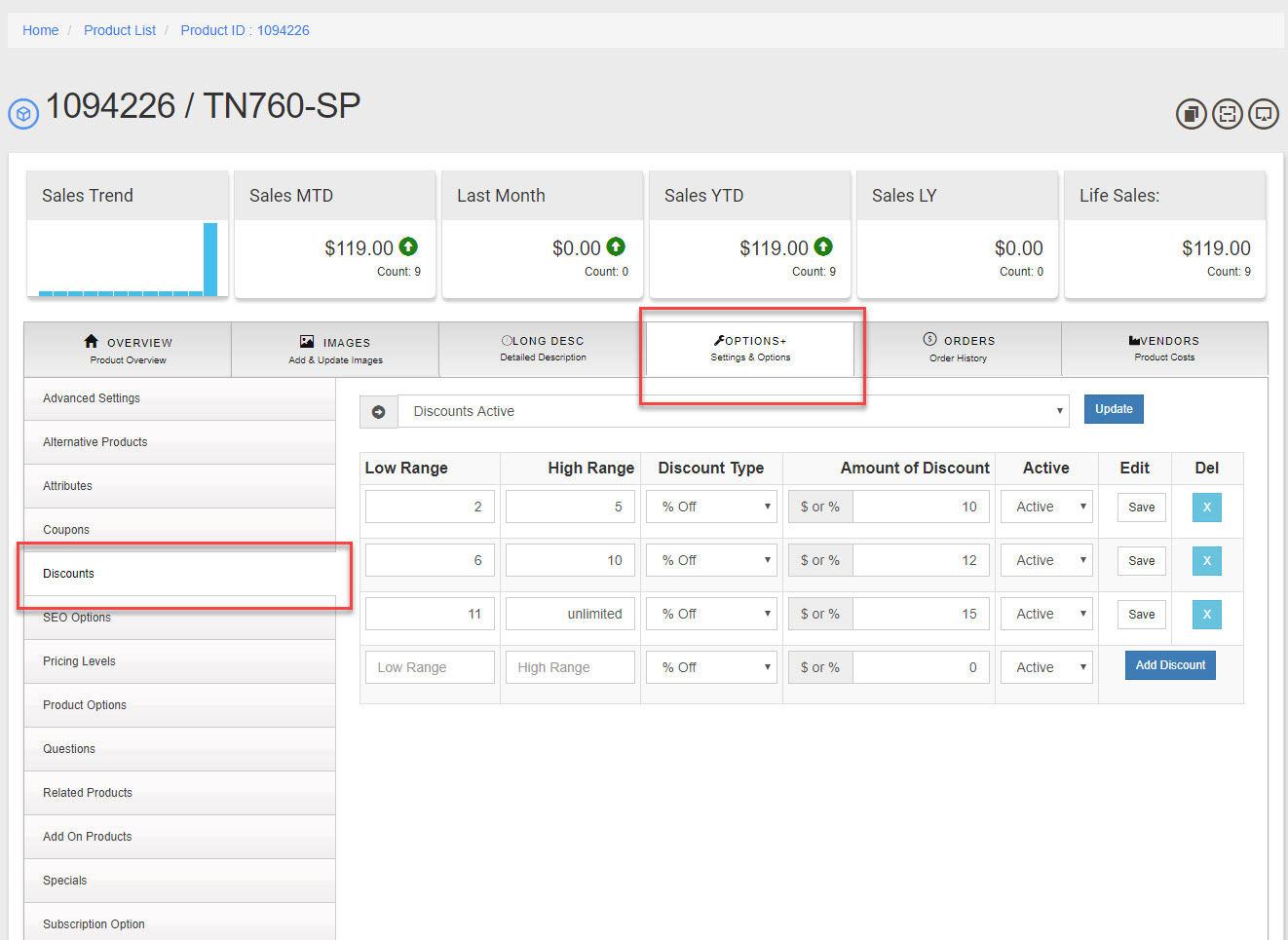
- Select the "Options" tab.
- Now select the "Discounts" tab on the left.
- Enter the values for each of the discount ranges you wish to add then Click "Add Discount".

- "Low Range" is the starting point of the discount, should be 2 or higher.
- "High Range" is the top of the discount range 2 to 5 for example for maybe a 10% discount or 6 to 10 for a 12% discount and so on. (a Zero entered in the high range indicates that is unlimited 10+ of the low range is 10)
- "% Off" vs "$ Off" If you select "% Off" the discount will be x.xx % off the regular price. "$ Off" will give you $x.xx off the regular price. Example if the regular price is $11.00 and the discount is set to "% Off" with an amount off of "5" then the discounted price will be $10.45 if you set it to "$ Off" the discounted price will be $6.00.
- The Field "$ or %" is the value for the discount either a percentage or dollar amount. (i.e. "10", "10.50" and so on)
- Click "Add Discount"
- Repeat as needed.
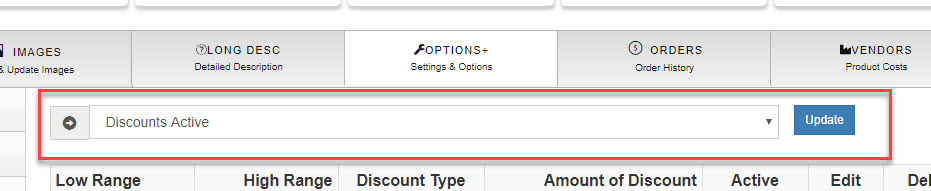
- You MUST also set the discounts to active by selecting "Discounts Active" in the drop down then click "Update"