How to make a Sales Quote?
Getting Started with Generating a Sales Quote
Your Account must be a "Tier 2" or higher account in order to have access to Sales Quotes. To check this view your "My Profile" in the admin top right where your name is displayed.
To start a Sales Quote follow these steps:
- In the left navigation menu go to "Customers".
- Now select "Customer List"
- Search for the Customer you would like to Generate a Sales Quote for.
- From the Customers Details click on "+ Create Sales Quote"
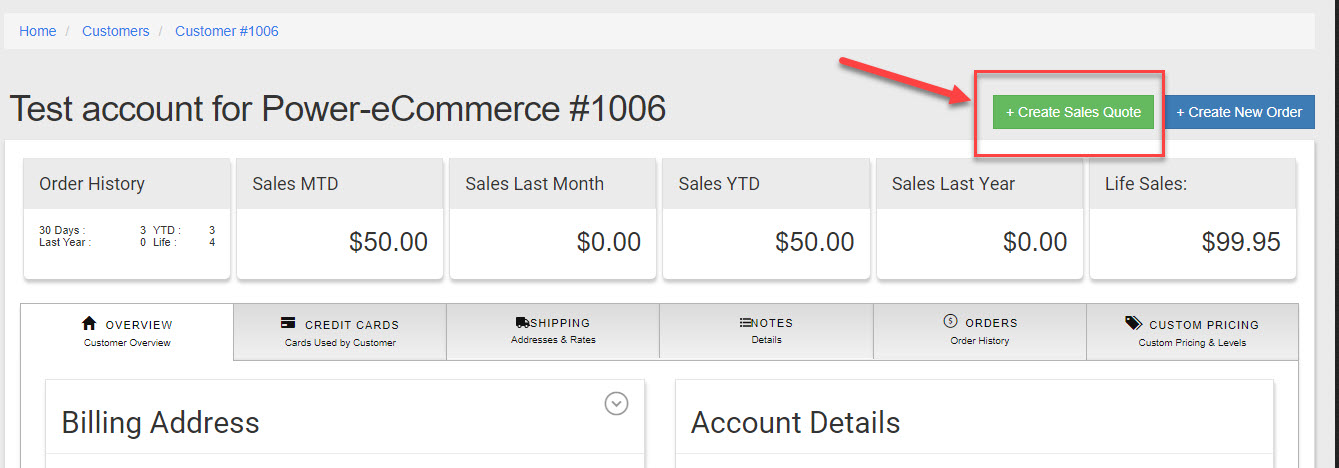
- Once you have clicked on "+ Create Sales Quote" a sales order has been created for that customer.
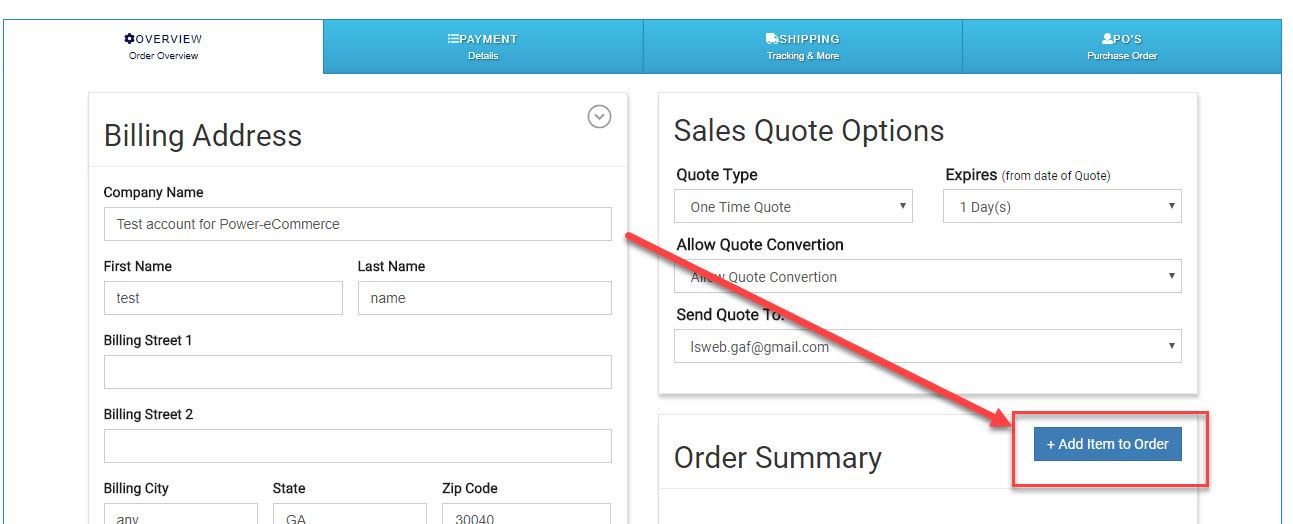
- The next Step is adding the items you want to give a quote on.
- To Add an item to the "Sales Quote" click on "+ Add Item to Order"
- From here search for and select the item you would like to add to the Sales Quote.
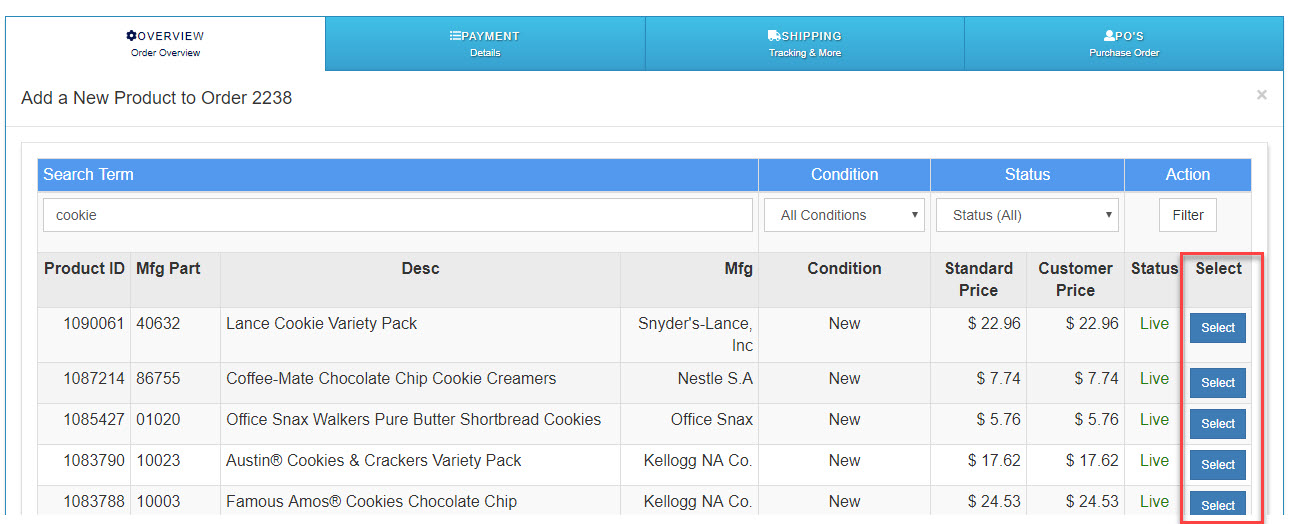
- Repeat Step 8 to add additional items to the sames quote.
- Next we need to setup the "Sales Quote Options"
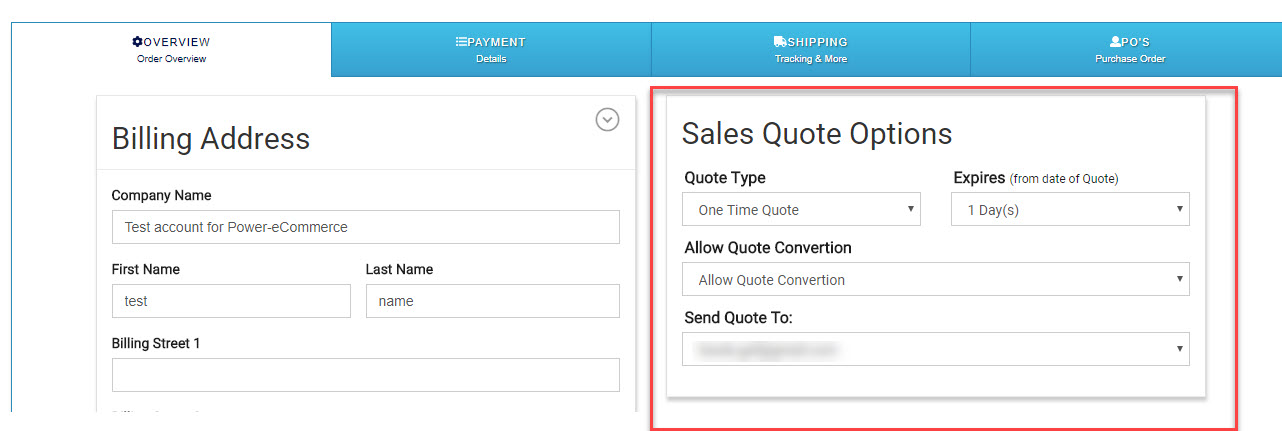
- Option : Quote Type, here we set if this is a one time quote where the quote will only be good for this quote/order. Or, if this will be a permanent price for this customer and will be added to their "Custom Prices" once they accept the quote.
- Option : Expires, Set the number of days a Quote will be good for from 1 to 30 days (cannot exceed 30 days).
- Option : All Quote Conversion, if you want the customer to convert the quote to an order or not. Also requires a payment method on file.
- Option : Send Quote To, Here you select from the Customer or the customer logins(sub-accounts) that will be sent the Sales Quote.
- Currently you MUST manually add shipping and tax to the sales quote.
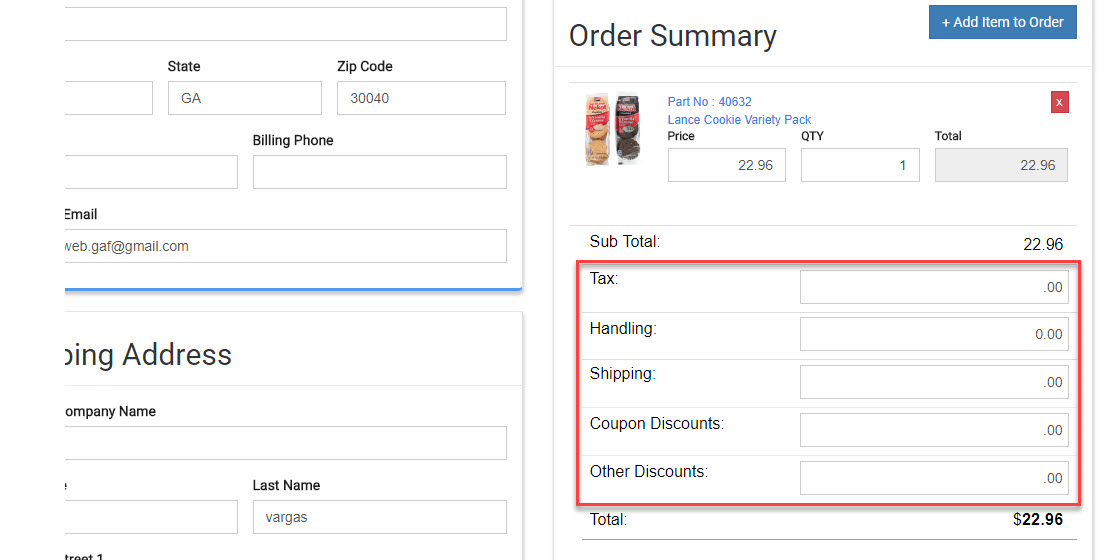
- Be sure to click on "Save Changes" or some of your work can be lost.
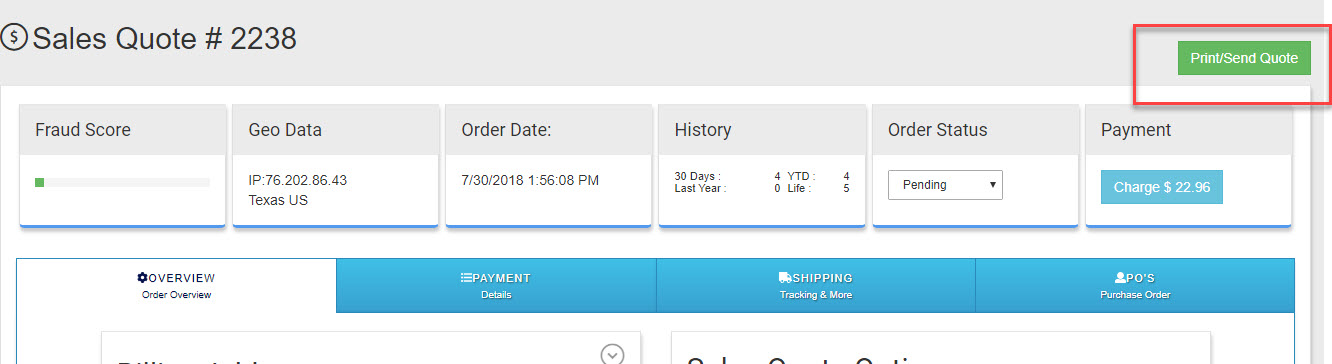
- The last thing you need to do is Send the Quote to the customer. In the top right of the Sales Quote look for "Print/Send Quote"
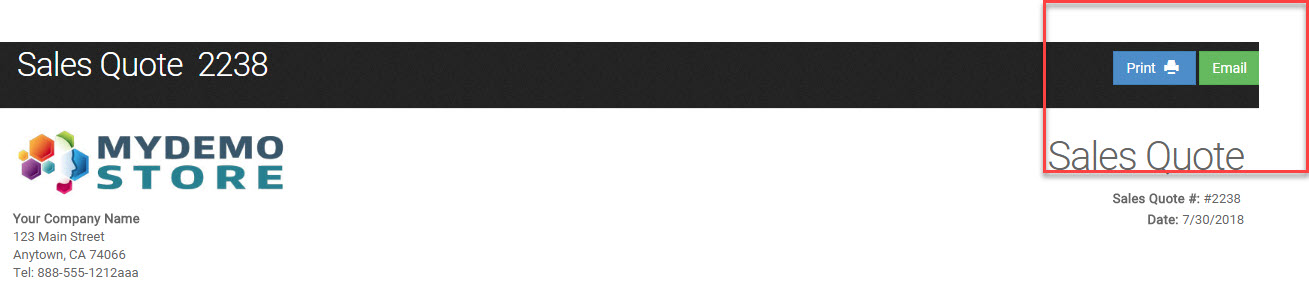
- You are given the option to "Print" or "Email" the Sales Quote from here. Once you email or print the quote you are finished creating the Sales Quote.
View All Sales Quotes
To view Sales Quotes that have already been created go to your main left navigation menu "Sales" -> "Sales Quotes"
What the Customer Gets
We designed this process to be quick and simple for the customer. There are up to 4 options for the customer when they receive the link to the Sales Quote; Reject, Accept, Accept & add items to cart and Accept & Convert to Order(one click). The customer cannot view Sales Quotes except by using the link in the email they are sent.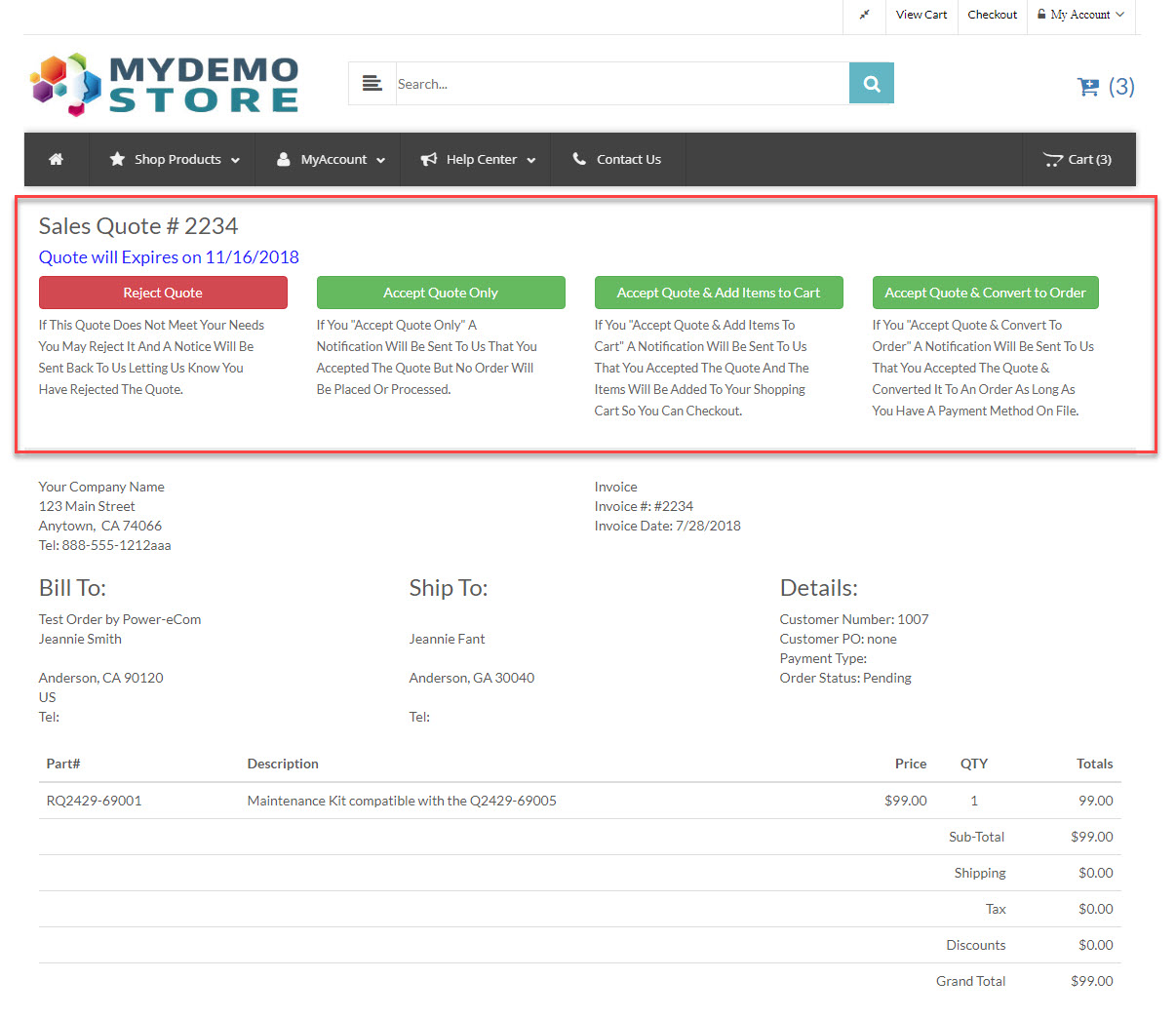
The customer will have to be logged in to there account to view the Sales Quote. If they are not they are directed to the login page of your web site and after login are sent right back to the Sales Quote automatically. Once the customer makes a selection they no longer have access to the sales quote. If the Sales Quote has passed the expiration date they no longer have access to the Sales Quote.