How to set up Clover Imaging Product Feed
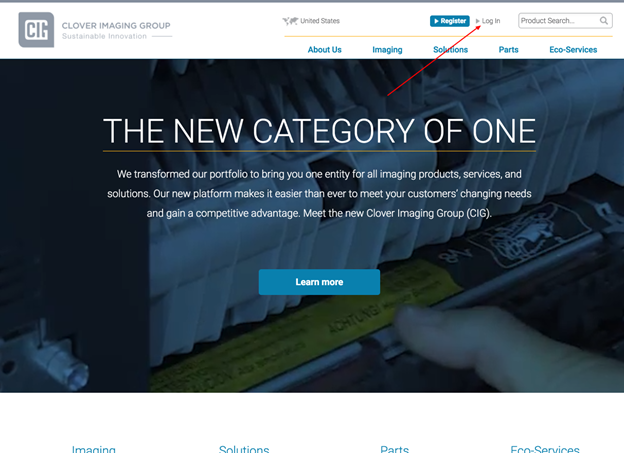
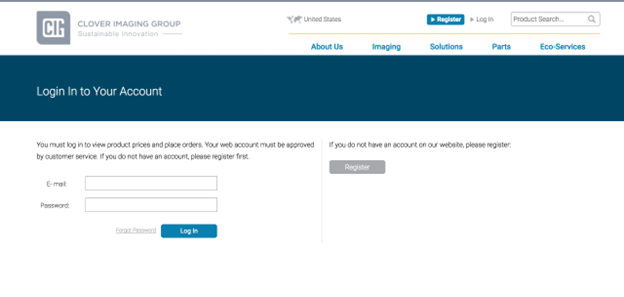
Step 1 Log into Clover Imaging Group Website
If you have an active web user on cloverimaging.com, log into your account.
Step 2 Open Web Content Download Page
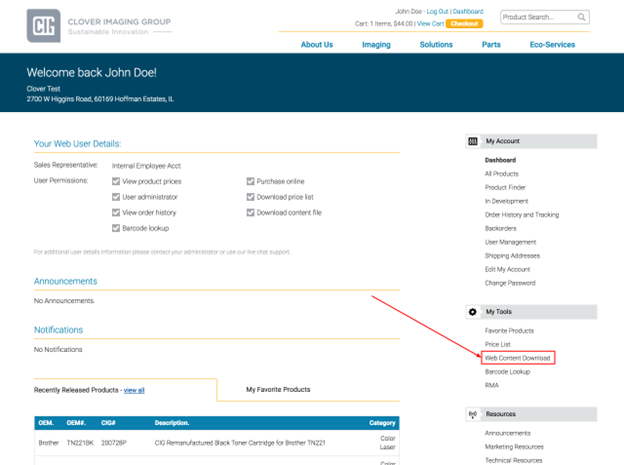
Once logged in, you will be presented with your dashboard. If your user permissions include Web Content Download, the link to the page is located on the right hand side under My Tools category.
Step 3 Set up the data feed
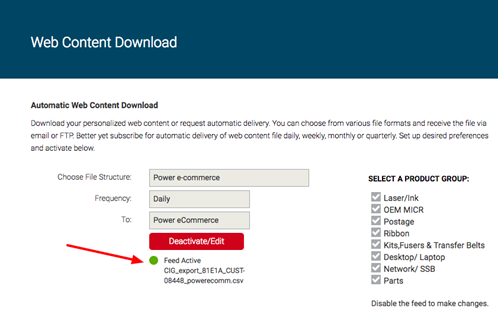
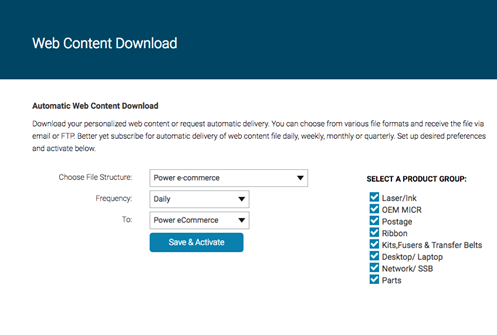
On Web Content Download page, select the following settings
1. File Structure: Power e-commerce
2. Frequency: Weekly
3. To: Power eCommerce
4. Select product groups you want on your site
5. Click: Save & Activate button.
Step 4 Note the File name
You might need the data file name to complete the setup in Power eCommerce administration. Once the feed is active, the file name will show up. Please contact your Power e-Commerce account manager and give them the file name.