Newletter/Email Popup
Email popups sometimes called email capture popups or opt-in popup forms, are a great tool to use to capture email addresses from your website visitors so you can continue to communicate with them via email.
- From the Menu go to Sales --> Email Marketing -- > Click on Tab "Email Popup"
- First you will need to decide if you want a standard Email/Newsletter Popup or a Coupon Popup.
- Popup Status choose "Coupon Popup" or "Email/Newsletter Only Popup". We recommend you keep this set to "Disabled" until you are ready to test it or go live. As soon as you change to anything other than Disabled it will appear on your store.
- For Email/Newsletter Popup follow these steps move to step 4.
- For Coupon/Newsletter Popup go to Step 3.
- Link Popup to Coupon Code (Non-Expired)
Select a Coupon code in the drop down box. If you do not see any coupons please go to the Coupon manager to add one.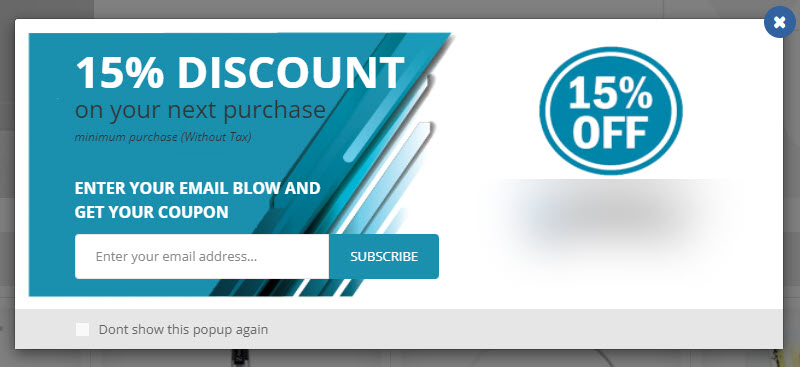
- Popup Delay
This setting determines how many seconds someone is on your home page before the popup is displayed.
Note: Existing customers that are logged in or someone that has signed up for the coupon or newsletter will not get this popup. The popup will only appear on the home page. - Primary Text
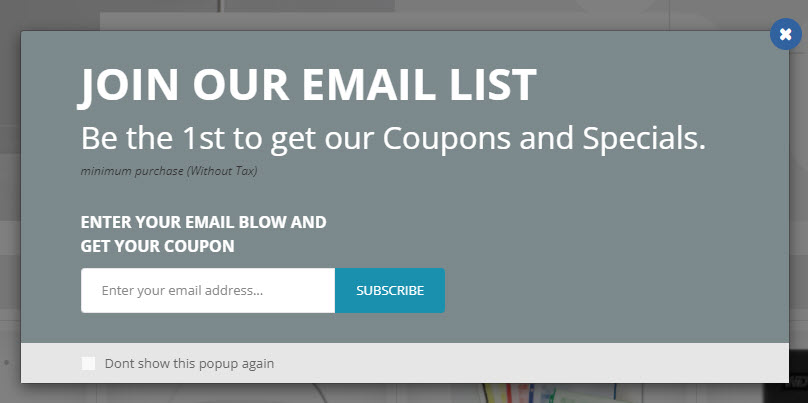
This is the 1st line that the user will see in the popup. In the two example screenshots their text is "JOIN OUR EMAIL LIST" and "15% DISCOUNT". Use this line to get the users attention.
Text Size: Set the size for the text.
Color: Set the color of the text here.
- Description (Line 2)
Secound line in the popup. In the first popup example image "Be the 1st to get our Coupons and Specials."
Text Size: Set the size for the text.
Color: Set the color of the text here.
- Desc 2 (Line 3)
Third line in the popup. In the first popup example image "minimum purchase (Without Tax)"
Text Size: Set the size for the text.
Color: Set the color of the text here.
- Desc 3 (Line 4)
Forth line in the popup. In the first popup example image "Enter your email blow and get your Coupon"
Text Size: Set the size for the text.
Color: Set the color of the text here.
- Background Image (W)768px X (H)290px
This a background image can be used to add marking like in the 2nd popup example or to enhance the user’s experience.
- Background Color (if any)
Set the background color of the popup. Use darker background for lighter colored text and lighter background for darker text.
- Button Text
You can change the "Subscribe" button text to what you like as long as its fits in the same space as "Subscribe".
Button Color: Change the button's color.
Text Color: Set the color of the button's text here.
- Save Changes
Save your changes before leaving the page or all your work will be lost.